
Chapter 2 : Pascal Record Types and Filing
Significance of Study
Computer program design can be made much easier by organizing information into abstract data structures (ADS). For example, one can model a table that has three columns and an indeterminate number of rows, in terms of an array with two dimensions:
(1) a large number of rows, and
(2) three columns.
A key feature of modern computer programs is the ability to manipulate ADS using procedures or methods that are predefined by the programmer or software designer. This requires that data structures be specified carefully, with forethought, and in detail. This section is organized as follows:
1. Arrays and their Manipulation
2. DOS Files and Turbo PASCAL
3. PASCAL File I/O Commands
1. Arrays and their Manipulation.
We begin with several observations about the use of arrays in computer programs.
- Observation. In the early days of computer programming, machines were dedicated to the task of computing tables of artillery trajectories (WWII) and tables of accounting and business inventory information (early 1950s). Thus, numerically intensive computing machines were designed to handle linear or two-dimensional arrays. When computer programming became better established and scientific applications came into vogue, the FORTRAN (Formula Translation) language was developed which supported multiply-dimensioned arrays.
Definition. An array is a data structured whose domain is a finite subset of Euclidean n-space Rn.
Observation. Arrays in PASCAL are assigned the datatype of the elements that they contain, which can bee one and only one datatype. For example, arrays can be integer-, real-, string-, or character-valued, but elements of more than one such type cannot be contained in a PASCAL array.
Example. The vector a = (2,3,-1,5,6,0,9,-7) is a one-dimensional integer-valued array. The first value, denoted by a(1), equals 2. The i-th value in the array is denoted by a(i), i = 1..8, because there are eight elements in the array.
Example. The two-dimensional array shown below has four columns and three rows. Each element of the array is referenced by its (row,column) coordinate. For example, the element whose value equals 9.2 is in row 3, column 4, which we write as a(3,4) = 9.2 .
Figure 1. An example of a two-dimensional array.
Remark. The use of row-column indices or coordinates makes referencing elements of arrays convenient. It is especially useful to note that arrays can be indexed in loops. For example, a loop that would set all the elements of the array a in Figure 5.1 to zero could be written in pseudocode as:
:
DECLARE a : array [3,4] of real;
:
FOR i = 1 to 3 DO:
FOR j = 1 to 4 DO:
a(i,j) := 0.0
ENDFOR
ENDFOR
and in PASCAL as:
:
VAR a : array [1..3,1..4] of real;
:
FOR i := 1 to 3 DO
FOR j := 1 to 4 DO
a[i,j] := 0.0 ; ;
- Observation. In the above PASCAL code fragment, each dimension of the array a has a lower and upper limit to the subscripts that are allowed. One finds the size of each dimension by subtracting the lower limit from the upper limit, then adding one.
Example. If an array is dimensioned as:
VAR b : array [-2..3,5..9,4..8] of integer;
then the number of elements in the array is computed as follows:
STEP 1: Dimension #1 is of size (3 – -2 + 1) = 6
STEP 2: Dimension #2 is of size (9 – 5 + 1) = 5
STEP 3: Dimension #3 is of size (8 – 4 + 1) = 5
STEP 4: Multiply the dimension sizes:
Nelements = 6 x 5 x 5 = 150
to find that there are 150 elements in the array.
In the early days of computing, it was very important to know how large arrays were, because computer memory was extremely limited. Today, with large memory models, one still must be careful not to specify array dimensions too large, but it is less of a problem than in the past.
- Programming Hint: As we mentioned in class, one always initializes program variables to which file data is not assigned prior to computing a given expression. One can use the preceding loop structure to assign initial values to array elements in an efficient manner.
A key problem with arrays is that they have fixed size. Hence, they are called static data structures. In a more advanced class, we would examine techniques for programming data structures called lists, which can expand and contract with the data that one puts into or takes out of the list. Another problem of arrays which we mentioned previously is that they are statically typed, i.e., cannot be used to store any type of data, but only the type of data assigned to them in the VAR statement in which they were declared. It is interesting to note that certain languages, such as SNOBOL and ICON, have circumvented this difficulty by providing a TABLE data structure that can hold data of any type. You are not responsible for knowing about the TABLE data structure, however, since it is not available in PASCAL.
.2. DOS Files and Turbo PASCAL.
Turbo PASCAL supports many different types of file operations through its DOS interface, which is transparent to the user. In Section 2, we mentioned file operations such as open, read, write, and close, which we now discuss in some detail.
In order to understand file structures, it helps to think of a disk drive in terms of a drawer in a filing cabinet. In each drawer, there are many files, which are usually contained in manila folders. In order to view, create, or modify the contents of a folder, one must first retrieve then open the folder. This is similar to initializing and opening a computer disk file.
If one wants to view the file contents, then one must read the file, which holds for either physical or computer files. Similarly, creating new file contents or modifying existing file information is accomplished by writing to the file.
After one has completed operations on a given file, it is returned to the file cabinet, to keep the work area neat (this helps one find the file when it is next needed). A similar situation holds for computer disk files, where one closes the file in order to deallocate file pointers assigned by the file I/O library and runtime module.
Additional file operations, such as changing file read/write permissions are also possible. However, these are within the purview of more advanced topics, and are not part of the basic file operations reviewed in these class notes.
.3. PASCAL File I/O Commands.
The PASCAL language provides constructs for allocating or initializing, opening, reading, writing, and closing files. File addresses or references are expressed in terms of symbolic file handles, which are represented in PASCAL as names assigned to a given file. The following commands pertain:
ASSIGN statement:
Purpose: The ASSIGN statement provides a mechanism for linking a disk file to a symbolic name or file handle.
Syntax: ASSIGN( file-handle , file-pathname ) ; , where
file-handle is a name declared as type text in a VAR statement (see below)
file-pathname is a DOS pathname of the file to be referenced by file-handle
Example:
VAR handle : text ;
:
ASSIGN(handle,’A:/PROJECTS/PROJ-2.DAT’);
:
Notes: In the preceding example, the string constant ‘A:/PROJECTS/PROJ-2.DAT’ may be replaced by a string variable that contains the pathname. Also, the file referenced by this path must be a text file, as noted in the VAR statement that precedes the ASSIGN statement.
There are two types of file opening statements, one of which opens the file for reading (input), the other for writing (output).
RESET statement:
Purpose: The RESET statement opens a file for reading.
Syntax: RESET (file-handle) ; , where
file-handle was associated with a disk file by the ASSIGN statement
Example:
RESET (handle);
REWRITE statement:
Purpose: The REWRITE statement opens a file for writing.
Syntax: REWRITE (file-handle) ; , where
file-handle was associated with a disk file by the ASSIGN statement
Example:
REWRITE (handle);
PASCAL has two ways of reading or writing to a file. The READLN (or WRITELN) statement reads a sequence of characters terminated by a newline character or a carriage return, whereas the READ (WRITE) statement reads the file as a stream of characters. Since we have already covered the READLN and WRITELN statements in class, which we used to obtain input from (send output to) the computer keyboard (monitor), we herein discuss the READ and WRITE statements only. The syntax of READLN and WRITELN is symmetric to that of the READ and WRITE statements.
READ statement:
Purpose: The READ statement inputs data from the keyboard or a file as a stream of characters.
Syntax: READ ([file-handle], [I/O-list]) ; , where
file-handle was associated with a disk file by the ASSIGN statement
I/O-list is a list of variables with optional format specifiers that reference data contained in the file that is itself referenced by file-handle.
Example:
READ (handle, a[1], letter, x, y);
Notes: If the file handle is omitted, then the Turbo PASCAL runtime module understands that the input is being taken from the computer keyboard. For those who may be C programmers or have worked with UNIX systems (versus DOS), this is called “stdin”, which is an abbreviation for “standard input”.
WRITE statement:
Purpose: The WRITE statement inputs data from the keyboard or a file as a stream of characters.
Syntax: WRITE ([file-handle], [I/O-list]) ; , where
file-handle was associated with a disk file by the ASSIGN statement
I/O-list is a list of variables with optional format specifiers that reference data contained in the file that is itself referenced by file-handle.
Example:
WRITE (handle, a[1], letter, x, y);
Notes: If the file handle is omitted, then the Turbo PASCAL runtime module understands that the output is to be directed toward the computer monitor. For those who may be C programmers or have worked with UNIX systems (versus DOS), this is called “stdin”, which is an abbreviation for “standard input”.
CLOSE statement:
Purpose: The CLOSE statement deallocates the file handle that was activated with the ASSIGN statement, and closes the file on disk.
Syntax: CLOSE ([file-handle]) ; , where
file-handle was associated with a disk file by the ASSIGN statement
Example:
CLOSE (handle);
Notes: The CLOSE statement has a delete option that we do not recommend for introductory users. Unfortunately, this option does not have any “safety checks”, and it is easy to delete data or programs (if you make a filename entry error) that you have spent much time on.
This concludes our summary of PASCAL file commands. Details of command usage, options, formatting, etc. will be given in class.
Pascal – File Handling
Pascal treats a file as a sequence of components which must be of uniform type. A file’s type is determined by the type of the components. File data type is defined as:
type
file-name = file of base-type;
Where, the base-type indicates the type of the components of the file. The base type could be anything like, integer, real, Boolean, enumerated, subrange, record, arrays and sets except another file type. Variables of a file type are created using the var declaration:
var
f1, f2,…: file-name;
Following are some examples of defining some file types and file variables:
type
rfile = file of real;
ifile = file of integer;
bfile = file of boolean;
datafile = file of record
arrfile = file of array[1..4] of integer;
var
marks: arrfile;
studentdata: datafile;
rainfalldata: rfile;
tempdata: ifile;
choices: bfile;
Creating and Writing to a File
Let us write a program that would create a data file for students’ records. It would create a file named students.dat and write a student’s data into it:
program DataFiles;
type
StudentRecord=Record
s_name:AnsiString;
s_addr:AnsiString;
s_batchcode:AnsiString;
end;
var
Student:StudentRecord;
f: file;
begin
AssignFile(f,’students.dat’);
Rewrite(f);
Student.s_name :=’John Smith’;
Student.s_addr :=’United States of America’;
Student.s_batchcode :=’Computer Science’;
BlockWrite(f,Student,sizeof(StudentRecord));
CloseFile(f);
end.
When compiled and run, the program would create a file named students.dat into the working directory. You can open the file using a text editor, like notepad, to look at John Smith’s data.
Reading from a File
We have just created and written into a file named students.dat. Now let us write a program that would read the student’s data from the file:
program DataFiles;
type
StudentRecord=Record
s_name:AnsiString;
s_addr:AnsiString;
s_batchcode:AnsiString;
end;
var
Student:StudentRecord;
f: file;
begin
AssignFile(f,’students.dat’);
reset(f);
while not eof(f) do
begin
Blockread(f,Student,sizeof(StudentRecord));
writeln(‘Name: ‘,Student.s_name);
writeln(‘Address: ‘,Student.s_addr);
writeln(‘Batch Code: ‘,Student.s_batchcode);
end;
readln; // to see the output
closeFile(f);
end.
When the above code is compiled and executed, it produces following result:
Name: John Smith
Address: United States of America
Batch Code: Computer Science
Files as Subprogram Parameter
Pascal allows file variables to be used as parameters in standard and user defined subprograms. The following example illustrates this concept. The program creates a file named rainfall.txt, and stores some rainfall data. Next, it opens the file, reads the data and computes the average rainfall.
Please note that, if you use a file parameter with subprograms, it must be declared as a var parameter.
program addFiledata;
const
MAX =4;
type
raindata = file of real;
var
rainfile: raindata;
filename:ShortString;
procedure writedata(var f: raindata);
var
data: real;
i: integer;
begin
rewrite(f,sizeof(data));
for i:=1 to MAX do
begin
writeln(‘Enter rainfall data: ‘);
readln(data);
write(f, data);
end;
closeFile(f);
end;
procedure computeAverage(var x: raindata);
var
d, sum: real;
average: real;
begin
reset(x);
sum:=0.0;
while not eof(x) do
begin
read(x, d);
sum := sum + d;
end;
average := sum/MAX;
CloseFile(x);
writeln(‘Average Rainfall: ‘, average:7:2);
readln; // to see the output
end;
begin
writeln(‘Enter the File Name: ‘);
readln(filename);
AssignFile(rainfile, filename);
writedata(rainfile);
computeAverage(rainfile);
end.
When the above code is compiled and executed, it produces following result:
Enter the File Name:
rainfall.txt
Enter rainfall data:
34
Enter rainfall data:
45
Enter rainfall data:
56
Enter rainfall data:
78
Average Rainfall: 53.25
Text Files
A text file, in Pascal, consists of lines of characters where each line is terminated with an end-of-line marker. You can declare and define such files as:
type
file-name = text;
Difference between a normal file of characters and a text file is that a text file is divided into lines, each terminated by a special end-of-line marker, automatically inserted by the system. The following example creates and writes into a text file named contact.txt:
program exText;
var
filename, data:ShortString;
myfile: text;
begin
writeln(‘Enter the file name: ‘);
readln(filename);
AssignFile(myfile, filename);
rewrite(myfile);
writeln(myfile,’Note to Students: ‘);
writeln(myfile,’For details information on Pascal Programming’);
writeln(myfile,’Contact: Tutorials Point’);
writeln(‘Completed writing’);
closeFile(myfile);
end.
When the above code is compiled and executed, it produces following result:
Enter the file name:
contact.txt
Completed writing
Appending to a File
Appending to a file means writing to an existing file that already has some data without overwriting the file. The following program illustrates this:
program exAppendfile;
var
myfile: text;
info:ShortString;
begin
assignFile(myfile,’contact.txt’);
append(myfile);
writeln(‘Contact Details’);
writeln(‘dddd street’);
closeFile(myfile);
//let us read fromthis file
AssignFile(myfile,’contact.txt’);
reset(myfile);
while not eof(myfile) do
begin
readln(myfile, info);
writeln(info);
end;
CloseFile(myfile);
readln; // to see the output
end.
In a record structure, the components (called fields) are not necessarily of the same type. In order that the type of a selected component be evident from the program text (without executing the program), a record selector is not a computable value, but instead is an identifier uniquely denoting the component to be selected. These component identifiers are declared in the record type definition. Again, the time needed to access a selected component does not depend on the selector, and the record is therefore also a random-access structure. A record type may be specified as consisting of several variants. This implies that different variables, although said to be of the same type, may assume structures which differ in a certain manner. The difference may consist of a different number and different types of components. The variant which is assumed by the current value of a record variable is indicated by a component field which is common to all variants and is called the tag field. Usually, the part common to all variants will consist of several components, including the tag field.
A file structure is a sequence of components of the same type. A natural ordering of the components is defined through the sequence. At any instance, only one component is directly accessible. The -5- other components are made accessible by progressing sequentially through the file. A file is generated by sequentially appending components at its end. Consequently, the file type definition does not determine the number of components.
Record types A record type is a structure consisting of a fixed number of components, possibly of different types. The record type definition specifies for each component, called field, its type and an identifier which denotes it. The scope of these so-called field identifiers is the record definition itself, and they are also accessible within a field designator (cf. 7.2) referring to a record variable of this type. A record type may have several variants, in which case a certain field is designated as the taq field, whose value indicates which variant is assumed by the record variable at a given time. Each variant structure is idenfified by a case label which is a constant of the type of the tag field. ::= record end |;| ‘::= {; } }: : {;} ::= : () {, } ::=
Arrays in Pascal allow the definition of variables that can contain multiple data items of the same type, but record types in Pascal are user-defined data types available in Pascal, allowing you to combine data of different kinds.
Records in Pascal consist of various fields. For instance, if you want to track the books available in a library, you can track the following attributes of each book, including:
– Book Title
– Author of the Book
– Book Classification
– Book ID
Defining Records in Pascal
To define a record in Pascal, you can use a type declaration. The record type in Pascal is defined as follows:
Below is how to declare a record type Book:
General structure for defining variables of record type in Pascal:
Declaration
r1, r2, … : record-name;
Alternatively, you can directly define variables of record type in Pascal:
Accessing Fields in Pascal Record Type
To access any fields within a record type in Pascal, we can utilize the access operator (.). The member access operator is represented by a dot between the record variable name and the field you wish to access.
Below is an example illustrating how to access fields within a Pascal record type:
When the code above is compiled and executed, it will return the following result:
Passing a Pascal Record as an Argument to a Subprogram
You can pass a Pascal record as an argument to a subprogram just like you can pass any variable or pointer.
In the example below, you can access record fields similarly to how you access them in the previous example:
When the code above is compiled and executed, it will return the following result:
Pointers in Pascal Record
You can define a pointer to a record similar to how you define pointers to any variables as shown below:
Now you can store the address of a record variable in a pointer variable defined above. To declare a pointer variable, you use the var keyword:
var
r1, r2, … : record-ptr;
Before using these pointers, you must allocate memory for a record variable, which will be manipulated by these pointers.
new(r1);
new(r2);
To access fields of a record using a pointer to that record, you must use the ^ operator as shown below:
Finally, deallocate the memory used in case the memory is no longer needed:
dispose(r1);
dispose(r2);
The example below uses a pointer to the Book record:
When the code above is compiled and executed, it will return the following result:
With Statement in Pascal Records
As mentioned above, we can access the fields of a record by using the dot operator (.). By this method, the record variable name has to be written multiple times. Therefore, using the With statement is an alternative solution in this case.
Below is an example piece of code taken from the first example:
A similar code snippet can be written using the With statement:
type
// Declare a customer record
TCustomer = Record
firstName : string[20];
lastName : string[20];
address1 : string[100];
address2 : string[100];
address3 : string[100];
city : string[20];
postCode : string[8];
end;
var
John, Sarah : TCustomer;
begin
// Set up the John’s customer details
with John do
begin
firstName := ‘John’;
lastName := ‘Smith’;
address1 := ‘7 Park Drive’;
address2 := ‘Branston’;
address3 := ‘Grimworth’;
city := ‘Banmore’;
postCode := ‘BNM 1AB’;
end;
// Set up John’s sister similarly – simply copying the whole record
Sarah := John;
// And then changing the first name to suit
Sarah.firstName := ‘Sarah’;
// Now show the details of both customers
with John do ShowCustomer([firstName, lastName,
address1, address2, address3,city,
postCode]);
ShowMessage(”);
with Sarah do ShowCustomer([firstName, lastName,
address1, address2, address3,city,
postCode]);
end;
// A procedure that displays a variable number of strings
procedure TForm1.ShowCustomer(const fields: array of string);
var
i : Integer;
begin
// Display all fields passed – note : arrays start at 0
for i := 0 to Length(fields)-1 do
ShowMessage(fields[i]);
end;
Simple Assign End Program
What is file? File is a collection of bytes that is stored on secondary storage devices like disk. There are two kinds of files in a system. They are,
1. Text files (ASCII)
2. Binary files
· Text files contain ASCII codes of digits, alphabetic and symbols.
· Binary file contains collection of bytes (0’s and 1’s).
Binary files are compiled version of text files. Basic file operations in C programming: There are 4 basic operations that can be performed on any files in C programming language. They are,
1. Opening/Creating a file
2. Closing a file
3. Reading a file
4. Writing in a file C provides a number of functions that helps to perform basic file operations. Following are the functions, Function description fopen() create a new file or open a existing file fclose() closes a file getc() reads a character from a file putc() writes a character to a file fscanf() reads a set of data from a file fprintf() writes a set of data to a file getw() reads a integer from a file putw() writes a integer to a file fseek() set the position to desire point File Handling in C Language
2 Asst. Prof. P. M. Patil
Opening a File or Creating a File fopen() function is used to open a file to perform operations such as reading, writing etc. In a C program, we declare a file pointer and use fopen() as below.
fopen() function creates a new file if the mentioned file name does not exist.FILE *fp; General Syntax : *fp = FILE *fopen(const char *filename, const char *mode); fp=fopen (“filename”, ”mode”); Where, fp – file pointer to the data type “FILE”. filename – the actual file name with full path of the file. mode – refers to the operation that will be performed on the file. Example: r, w, a, r+, w+ and a+. Please refer below the description for these mode of operations. Closing a file fclose() function closes the file that is being pointed by file pointer fp. In a C program, we close a file as below.
General Syntax : int fclose(FILE *fp); fclose (fp); fprintf() fprintf() function writes string into a file pointed by fp. In a C program, we write string into a file as below. General Syntax : int fprintf(FILE *fp, const char *format, …); e.g. fprintf (fp, “some data”); Mode of operations performed on a file mode description r opens a text file in reading mode w opens or create a text file in writing mode. a opens a text file in append mode r+ opens a text file in both reading and writing mode File Handling in C Language
3 Asst. Prof. P. M. Patil w+ opens a text file in both reading and writing mode a+ opens a text file in both reading and writing mode
wb opens or create a binary file in writing mode ab opens a binary file in append mode rb+ opens a binary file in both reading and writing mode wb+ opens a binary file in both reading and writing mode ab+ opens a binary file in both reading and writing mode Input/Output operation on File // Program to write
5 names in File and read from file and display on screen. #include #include void main() { FILE *fp; char name[30]; int i; clrscr(); fp=fopen(“test.txt”,”a+”); for(i=0;i # include main() { FILE *fp; char ch; fp = fopen(“one.txt”, “w”); printf(“Enter data”); while( (ch = getchar()) != EOF) { putc(ch,fp); } fclose(fp); fp = fopen(“one.txt”, “r”); while( (ch = getc(fp)! = EOF) printf(“%c”,ch); fclose(fp); } Reading and Writing from File using fprintf() and fscanf() #include #include struct emp { char name[10]; int age; }; void main() { struct emp e;
p = fopen(“one.txt”, “a”); q = fopen(“one.txt”, “r”); printf(“Enter Name and Age”); scanf(“%s %d”, e.name, &e.age); fprintf(p,”%s %d”, e.name, e.age); fclose(p); do { fscanf(q,”%s %d”, e.name, e.age); printf(“%s %d”, e.name, e.age); } while( !feof(q) ); getch(); } In this program, we have create two FILE pointers and both are referring to the same file but in different modes. fprintf() function directly writes into the file, while fscanf() reads from the file, which can then be printed on console usinf standard printf() function. //Program to copy data from one file to another file //read data from file one.txt and copy into file one.txt #include #include void main() { FILE *fp1,*fp2; char name[30]; clrscr(); fp1=fopen(“test.txt”,”r”); fp2=fopen(“one.txt”,”w”); while(!feof(fp1)) { fscanf(fp1,”%s”,name); fprintf(fp2,”%s”,name); } } :- For o/p open file one.txt in TC
A file is a container in computer storage devices used for storing data.
Why files are needed?
- When a program is terminated, the entire data is lost. Storing in a file will preserve your data even if the program terminates.
- If you have to enter a large number of data, it will take a lot of time to enter them all.
However, if you have a file containing all the data, you can easily access the contents of the file using a few commands in C. - You can easily move your data from one computer to another without any changes.
Types of Files
When dealing with files, there are two types of files you should know about:
- Text files
- Binary files
1. Text files
Text files are the normal .txt files. You can easily create text files using any simple text editors such as Notepad.
When you open those files, you’ll see all the contents within the file as plain text. You can easily edit or delete the contents.
They take minimum effort to maintain, are easily readable, and provide the least security and takes bigger storage space.
2. Binary files
Binary files are mostly the .bin files in your computer.
Instead of storing data in plain text, they store it in the binary form (0’s and 1’s).
They can hold a higher amount of data, are not readable easily, and provides better security than text files.
File Operations
In C, you can perform four major operations on files, either text or binary:
- Creating a new file
- Opening an existing file
- Closing a file
- Reading from and writing information to a file
Working with files
When working with files, you need to declare a pointer of type file. This declaration is needed for communication between the file and the program.
FILE *fptr;
Opening a file – for creation and edit
Opening a file is performed using the fopen() function defined in the stdio.h header file.
The syntax for opening a file in standard I/O is:
ptr = fopen(“fileopen”,”mode”);
For example,
fopen(“E:\\cprogram\\newprogram.txt”,”w”);
fopen(“E:\\cprogram\\oldprogram.bin”,”rb”);
- Let’s suppose the file newprogram.txt doesn’t exist in the location E:\cprogram. The first function creates a new file named newprogram.txt and opens it for writing as per the mode ‘w’.
The writing mode allows you to create and edit (overwrite) the contents of the file. - Now let’s suppose the second binary file oldprogram.bin exists in the location E:\cprogram. The second function opens the existing file for reading in binary mode ‘rb’.
The reading mode only allows you to read the file, you cannot write into the file.
| Opening Modes in Standard I/O | ||
| Mode | Meaning of Mode | During Inexistence of file |
| r | Open for reading. | If the file does not exist, fopen() returns NULL. |
| rb | Open for reading in binary mode. | If the file does not exist, fopen() returns NULL. |
| w | Open for writing. | If the file exists, its contents are overwritten. If the file does not exist, it will be created. |
| wb | Open for writing in binary mode. | If the file exists, its contents are overwritten. If the file does not exist, it will be created. |
| a | Open for append. Data is added to the end of the file. | If the file does not exist, it will be created. |
| ab | Open for append in binary mode. Data is added to the end of the file. | If the file does not exist, it will be created. |
| r+ | Open for both reading and writing. | If the file does not exist, fopen() returns NULL. |
| rb+ | Open for both reading and writing in binary mode. | If the file does not exist, fopen() returns NULL. |
| w+ | Open for both reading and writing. | If the file exists, its contents are overwritten. If the file does not exist, it will be created. |
| wb+ | Open for both reading and writing in binary mode. | If the file exists, its contents are overwritten. If the file does not exist, it will be created. |
| a+ | Open for both reading and appending. | If the file does not exist, it will be created. |
| ab+ | Open for both reading and appending in binary mode. | If the file does not exist, it will be created. |
Closing a File
The file (both text and binary) should be closed after reading/writing.
Closing a file is performed using the fclose() function.
fclose(fptr);
Here, fptr is a file pointer associated with the file to be closed.
Reading and writing to a text file
For reading and writing to a text file, we use the functions fprintf() and fscanf().
They are just the file versions of printf() and scanf(). The only difference is that fprintf() and fscanf() expects a pointer to the structure FILE.
Example 1: Write to a text file
#include <stdio.h>
#include <stdlib.h>
int main()
{
int num;
FILE *fptr;
// use appropriate location if you are using MacOS or Linux
fptr = fopen(“C:\\program.txt”,”w”);
if(fptr == NULL)
{
printf(“Error!”);
exit(1);
}
printf(“Enter num: “);
scanf(“%d”,&num);
fprintf(fptr,”%d”,num);
fclose(fptr);
return 0;
}
This program takes a number from the user and stores in the file program.txt.
After you compile and run this program, you can see a text file program.txt created in C drive of your computer. When you open the file, you can see the integer you entered.
Example 2: Read from a text file
#include <stdio.h>
#include <stdlib.h>
int main()
{
int num;
FILE *fptr;
if ((fptr = fopen(“C:\\program.txt”,”r”)) == NULL){
printf(“Error! opening file”);
// Program exits if the file pointer returns NULL.
exit(1);
}
fscanf(fptr,”%d”, &num);
printf(“Value of n=%d”, num);
fclose(fptr);
return 0;
}
This program reads the integer present in the program.txt file and prints it onto the screen.
If you successfully created the file from Example 1, running this program will get you the integer you entered.
Other functions like fgetchar(), fputc() etc. can be used in a similar way.
Reading and writing to a binary file
Functions fread() and fwrite() are used for reading from and writing to a file on the disk respectively in case of binary files.
Writing to a binary file
To write into a binary file, you need to use the fwrite() function. The functions take four arguments:
- address of data to be written in the disk
- size of data to be written in the disk
- number of such type of data
- pointer to the file where you want to write.
fwrite(addressData, sizeData, numbersData, pointerToFile);
Example 3: Write to a binary file using fwrite()
#include <stdio.h>
#include <stdlib.h>
struct threeNum
{
int n1, n2, n3;
};
int main()
{
int n;
struct threeNum num;
FILE *fptr;
if ((fptr = fopen(“C:\\program.bin”,”wb”)) == NULL){
printf(“Error! opening file”);
// Program exits if the file pointer returns NULL.
exit(1);
}
for(n = 1; n < 5; ++n)
{
num.n1 = n;
num.n2 = 5*n;
num.n3 = 5*n + 1;
fwrite(&num, sizeof(struct threeNum), 1, fptr);
}
fclose(fptr);
return 0;
}
In this program, we create a new file program.bin in the C drive.
We declare a structure threeNum with three numbers – n1, n2 and n3, and define it in the main function as num.
Now, inside the for loop, we store the value into the file using fwrite().
The first parameter takes the address of num and the second parameter takes the size of the structure threeNum.
Since we’re only inserting one instance of num, the third parameter is 1. And, the last parameter *fptr points to the file we’re storing the data.
Finally, we close the file.
Reading from a binary file
Function fread() also take 4 arguments similar to the fwrite() function as above.
fread(addressData, sizeData, numbersData, pointerToFile);
Example 4: Read from a binary file using fread()
#include <stdio.h>
#include <stdlib.h>
struct threeNum
{
int n1, n2, n3;
};
int main()
{
int n;
struct threeNum num;
FILE *fptr;
if ((fptr = fopen(“C:\\program.bin”,”rb”)) == NULL){
printf(“Error! opening file”);
// Program exits if the file pointer returns NULL.
exit(1);
}
for(n = 1; n < 5; ++n)
{
fread(&num, sizeof(struct threeNum), 1, fptr);
printf(“n1: %d\tn2: %d\tn3: %d\n”, num.n1, num.n2, num.n3);
}
fclose(fptr);
return 0;
}
In this program, you read the same file program.bin and loop through the records one by one.
In simple terms, you read one threeNum record of threeNum size from the file pointed by *fptr into the structure num.
You’ll get the same records you inserted in Example 3.
Getting data using fseek()
If you have many records inside a file and need to access a record at a specific position, you need to loop through all the records before it to get the record.
This will waste a lot of memory and operation time. An easier way to get to the required data can be achieved using fseek().
As the name suggests, fseek() seeks the cursor to the given record in the file.
Syntax of fseek()
fseek(FILE * stream, long int offset, int whence);
The first parameter stream is the pointer to the file. The second parameter is the position of the record to be found, and the third parameter specifies the location where the offset starts.
| Different whence in fseek() | |
| Whence | Meaning |
| SEEK_SET | Starts the offset from the beginning of the file. |
| SEEK_END | Starts the offset from the end of the file. |
| SEEK_CUR | Starts the offset from the current location of the cursor in the file. |
Example 5: fseek()
#include <stdio.h>
#include <stdlib.h>
struct threeNum
{
int n1, n2, n3;
};
int main()
{
int n;
struct threeNum num;
FILE *fptr;
if ((fptr = fopen(“C:\\program.bin”,”rb”)) == NULL){
printf(“Error! opening file”);
// Program exits if the file pointer returns NULL.
exit(1);
}
// Moves the cursor to the end of the file
fseek(fptr, -sizeof(struct threeNum), SEEK_END);
for(n = 1; n < 5; ++n)
{
fread(&num, sizeof(struct threeNum), 1, fptr);
printf(“n1: %d\tn2: %d\tn3: %d\n”, num.n1, num.n2, num.n3);
fseek(fptr, -2*sizeof(struct threeNum), SEEK_CUR);
}
fclose(fptr);
return 0;
}
This program will start reading the records from the file program.bin in the reverse order (last to first) and prints it.
Records and structs
A record is a package of variables, possibly of different types. Each variable is a field of the record. In C language, records are called structs, a shorthand for structure.
Table of contents:
Definition and manipulation of structs
The following example declares (that is, creates) a record x with three fields that can be used to store calendar dates:
struct {
int day;
int month;
int year;
} x;
It is a good ideia to give a name to the class of all records of a given kind. In our example, the name dmy seems appropriate:
struct dmy {
int day;
int month;
int year;
};
struct dmy x; // a record x of the dmy kind
struct dmy y; // a record y of the dmy kind
To refer to a field of a record, just write the name of the record and the name of the field separated by a period:
x.day = 31;
x.month = 12;
x.year = 2020;
Records can be treated as a new data type. After the following definition, for example, we can begin saying date in place of struct dmy:
typedef struct dmy date;
date x, y;
Example. The following function computes the end date of an event upon receiving the beginning date of the event and its duration in days.
date eventend (date beginnig, int duration) {
date end;
. . .
. . .
end.day = …
end.month = …
end.year = …
return end;
}
Introduction
Persistent data hierarchies typically consist of databases composed of files, which consist of records, which consist of fields, which consist of bytes, which are stored in bits. In files that hold a tabular structure, each record contains the same number of fields.
This chapter describes how to identify records and fields in a text file and how to retrieve tabular data.
Records
A record occupies a single line in a text file and holds all of the data associated with one chunk of information. The record is a sequence of characters that ends with a record delimiter. The typical record delimiter is the newline character (\n).
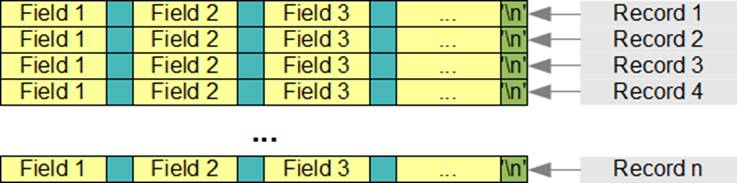
Consider a text file named produce.txt containing information about items of produce in a grocery store. Each record consists of the SKU for a product and its unit price.
4664 1.49
4419 1.29
4011 0.59
To determine the number of records in this file, we count the number of newline (‘\n’) characters:
// Number of Records
// records.c
#include <stdio.h>
int main(void)
{
FILE *fp = NULL;
int c, nrecs;
fp = fopen(“produce.txt”, “r”);
if (fp != NULL)
{
nrecs = 0;
do {
c = fgetc(fp);
if (c != EOF)
{
if ((char)c == ‘\n’)
nrecs++;
}
} while (feof(fp) == 0);
printf(“%d records on file\n”, nrecs);
fclose(fp);
}
return 0;
}
The above program produces the following output:
3 records on file
note
Since this program determines the number of records in the file by counting the newline characters, to report the correct number of records, the last record in the file must end with a newline character. If the last record does not end with a newline character, the count will be off by one.
Fields
A field holds one element of information within a single record. We separate adjacent fields within a record by a field delimiter.
Consider the file named produce.txt (see above). Each record contains two fields: the first field holds the SKU and the second field holds the unit price. The field delimiter is a blank character.
The following program reads the fields of each record in the file and displays their contents:
// Record and Fields
// recordFields.c
#include <stdio.h>
int main(void)
{
FILE *fp = NULL;
int sku;
double price;
fp = fopen(“produce.txt”, “r”);
if (fp != NULL)
{
printf(” Produce Items\n”
” =============\n\n”
“SKU Price\n”
“—————\n”);
while (fscanf(fp,”%d%lf\n”, &sku, &price) == 2)
{
printf(“%4d %10.2lf\n”, sku, price);
}
fclose(fp);
}
return 0;
}
The above program produces the following output:
Produce Items
=============
SKU Price
—————
4664 1.49
4419 1.29
4011 0.59
Tables
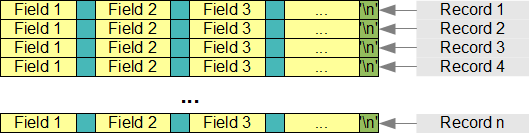
A table is a set of records in which each record contains the same number of fields.
danger
If one of the fields in a record is a character field, the blank character might not be suitable as a field delimiter and we select a special character for that purpose.
Consider the file named sale.txt (its contents are listed below). Each record in this file contains three fields:
- SKU
- price status (a single character where a blank character represents the regular price and * represents a sale)
- unit price
The field delimiter is the semi-colon character (;):
The following program reads each record from the file and displays the fields in a tabular format:
// Tabular Data
// table.c
#include <stdio.h>
int main(void)
{
FILE *fp = NULL;
int sku;
char status;
double price;
fp = fopen(“sale.txt”,”r”);
if (fp != NULL)
{
printf(” Produce Items\n”
” =============\n\n”
“SKU Sale Price\n”
“—————-\n”);
while (fscanf(fp, “%d;%c;%lf”, &sku, &status, &price) == 3)
{
printf(“%4d %c %8.2lf\n”, sku, status, price);
}
fclose(fp);
}
return 0;
}
The above program produces the following output:
Produce Items
=============
SKU Sale Price
—————-
4664 * 1.49
4419 * 1.29
4011 0.59