

Chapter 1
1.1 Atari TOS Version 1.0 TOS
Is the operating system designed for the Atari ST and TT series of computers. The Atari ST and TT use a Motorola 68k based CPU (The same CPU used by early Macintoshes) and was first manufactured in 1985.
The operating system consists of two parts. TOS – “The Operating System”. Kind of a customized version of CP/M provided by Digital Research. GEM – “Graphics Environment Manager”. The GUI shell that runs on top of TOS. This shares much in common with the DOS version of GEM.
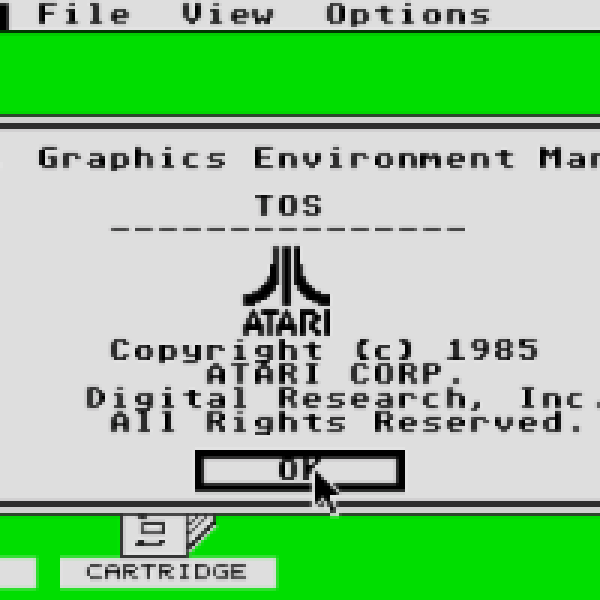
Both TOS and GEM are stored entirely in the system’s ROM. This is the GEM desktop running on TOS displaying its desktop info screen. The actual resolution of the default display is 320*200, obviously meant for viewing on a TV or composite monitor, but these screen shots have been enlarged to 640*400 for viewability. This is the GEM desktop running on TOS displaying its desktop info screen.
The actual resolution of the default display is 320*200, obviously meant for viewing on a TV or composite monitor, but these screen shots have been enlarged to 640*400 for viewability. This is a blank desktop. Instead of disk icons, there are file drawers.
The drives / drawers are assigned letters A, B, C and so on, similar to how CP/M and DOS organize drives. Just imagine if IBM had gone with CP/M for the original IBM PC instead of Microsoft DOS.
We might all be running Digital Research GEM 2004 right no The windows in TOS/GEM are Mac-like and can overlap and resize. None of the versions of GEM for Atari TOS were affected by the Apple lawsuit so all of the Atari versions retained these feature The TOS is the native Atari operating system, which comes together with each Atari computer. The first version, 1.0, also known as RAM TOS was loaded from disk, each next version is burned into system ROM at the factory. Each TOS version Atari has developed, apart from the official number, is also known under an unofficial name: TOS 1.0- RAM TOS, since it was loaded from disk and resided in the system RAM.
TOS 1.02- Blitter TOS was introduced with the Mega ST computer and contained routines supporting the Blitter, a graphic co-processor. TOS 1.04- Rainbow TOS, since it displays a rainbow Atari logo in the info box.
TOS 1.62- STE TOS was introduced with STE computer series. TOS 2.0x- Mega TOS was developed for Mega STE computer. TOS 3.0x- TT TOS was developed for the Atari TT030. TOS 4.0x- Falcon TOS also known as 3D TOS is present in the Falcon030 computer and provides 3D-looking window elements. TOS 5.0- the real Falcon030 TOS was supposed to become the native system of Falcon computers, but has never been officially released
. The only available version is a beta release known as TOS 4.92. The non-multitasking TOS, to be differentiated from the MultiTOS, is also known as the SingleTOS. System structure
The TOS consists of four main parts, each one can be replaced by a RAM-based substitute: BIOS, Basic Input/Output System, provides several hardware dependent functions and is basically compatible with PC BIOS.
Additionally, the ST-BIOS contains an enhancement, known as XBIOS(Extended BIOS). The XBIOS functions are strictly platform dependent and aren’t compatible with any other computer, but ST. GEMDOS, is the main file management subsystem. The GEMDOS has been developed by the Digital Research, Inc. and is compatible with DR-DOS. The GEMDOS may be replaced with MiNT kernel in order to use MiNT networking software. VDI, Virtual Device Interface, is a library of hardware dependent graphic functions. Generally, it is responsible for drawing basic screen elements (points, lines, filled and empty objects, fill textures, fonts etc.) and controlling the mouse. The VDI has also an optional, loadable extension called GDOS, mainly responsible for font management. Latest GDOS versions support Bitstream and True Type character sets.
The VDI may be replaced with NVDI, which is much faster and provides some additional functions. AES, Application Environment Manager, is a fully hardware independent window and application manager. The AES and the VDI, both developed by the Digital Research, Inc., are known as GEM, Graphic Environment Manager. The standard AES (version 3.40 in Falcon TOS) may be replaced with the MultiAES (AES 4.10), a part of MultiTOS 1.08 or with the Geneva, which converts the TOS to a co-operative multitasking system. Besides of that, the system ROM contains also the GEM Desktop, i.e. an application program directly responsible for user interaction with the TOS. This structure, in order to keep compatibility with the TOS, is present in some other operating systems. Short characteristicThe main advantage of the TOS is that it is fast, stable and not memory hungry – if you don’t load many TSRs, it gives you about 3,7 MB of TPA on a 4 MB machine, since it doesn’t utilize the system RAM to keep it’s own code into. But even considering that the system resides in ROM, you must prove that the TOS code is generally compact: the latest version, Falcon TOS, fits in a 512k chip together with the desktop and five resource files for five different nationalities. Also notice, that the TOS will work fine even if there is no hard drive connected – you can run the system from a floppy and have a serious chance, that all necessary system files won’t take more than 1% of the capacity on a standard 1,44M diskette.
‘ The main disadvantage of the TOS is that it doesn’t support true multitasking: only one application can be used at once together with up to six so called accessories, which have to be loaded at startup and must be present in the memory all the time the system is running. The accessories may run in parallel with the main application using some sort of cooperative multitasking – the system switches the CPU time between those seven tasks if they interact with the GEM. If the application or one of the accessories executes an operation which runs without any system call, task switching is impossible and the rest is stopped. Additionally, the TOS doesn’t support big logical drives. You can have up to 16 logical drives, 14 of them can be hard disk partitions. Each one is limited to 32766 data clusters, up to 16384 bytes each. It means, that the maximum capacity of a partition is about 512 MB. Summa summarum, the TOS cannot be currently considered as a modern operating system, but one has to remember that the latest version of the system has been released four years ago. That time big hard drives were rather rarely used in home computers and only one of popular operating systems supported true pre-emptive multitasking, namely the AmigaOS. Now the TOS is a bit out of date and has few devotees in the Atari community. Majority has moved to systems mentioned below.
MultiTOSThe multitasking TOS The MultiTOS has been developed by Atari Corp. to be a TOS replacement for those who would like to have a true multitasking system. Unlike the TOS, the MultiTOS is a fully RAM-based system and in fact consist of the MiNT kernel (that is described in one of the further sections) and a new, multitasking version of the AES (MultiAES). Due to this reason, the MultiTOS can theoretically support all of the MiNT possibilities, since in fact it is nothing else than the MiNT configured to be TOS and GEM compatible.
The MultiTOS provides the true, pre-emptive multitasking and supports many additional functions which are needed in such a system, e.g. memory protection, multiple filesystems, startup sequence scripts, standardized system enhacements, easy task selection, window iconification, loadable accessories, unlimited number of concurrent applications and many more. Additionally, it is much more configurable than the TOS and follows the general trend in programming of a modern operating system. Unfortunately, bad financial condition in 1993. has enforced the Atari Corp. to drop all ST-line support. MultiTOS was one of the victims of that decision. The latest official version, 1.04, was not perfect and has been quickly forgotten by the Atari community. Interestingly, the latest unofficial beta, MultiTOS 1.08, was way better and has began a general guideline for programmers developing software and replacement operating systems. In fact, the MultiTOS 1.08, never officially released, never officially supported and used only by a few heroical devotees – has become a standard. MagiCA way to new hardware The MagiC has been introduced to the market about two years ago by a German company called Application Systems Heidelberg, previously known as the developer of a C compiler (Pure C) and has become popular very quickly, breaking the Atari community into Magic’s devotees and enemies
. The MagiC is a modern operating system without any doubt. It is probably also the only and unique complete TOS replacement, which doesn’t use any of the TOS components. It follows the main MultiTOS guidelines (though some of the MultiAES, or even Falcon AES, functions are missing) and, furthermore, tries to enforce a new standard for software developers by supporting many of Digital Research GEM/2 functions (which are missing in the Atari GEM) as well as several own enhancements. Besides of the multitasking (both pre-emptive or co-operative, depending on a user selection), the MagiC supports a new filesystem in order to allow you to use long filenames and really big disks, easy task management, background DMA transfers, fast GEMDOS, fast AES, fast VDI and many more features. Additionally, although it is a RAM-based system, it is compact and not memory hungry – the whole system takes less than 300 kilobytes. Furthermore, it opens a way for the Atari community a way to use GEM applications with newer hardware – since there’s no hope to see new products of the Atari Corp. as the company is dead, the Application Systems Heidelberg released the MagiC versions for Apple computers and PCs. They are claimed to be GEM compatible and are supposed to allow you to use GEM applications on these platforms. MiNTA bridge to Unix The MiNT is a system originally based on the BSD package ported to ST computers by Eric R. Smith. It was supposed to be a backdoor for the Atari community to the Unix world with loads of BSD based network applications. A short (1992-94) romance of the MiNT and Atari Corp., which decided to convert the system to the MultiTOS kernel, has caused a birth of an unique TOS/Unix hybrid, which gives you simultaneous access to both GEM and BSD application libraries. Since the MiNT is the MultiTOS’s kernel, it has kept all the features described above and, if an AES replacement is installed, it can show you a new face of the MultiTOS. Unlike the MultiTOS however, the Unix-like MiNT is based on a different filesystem, which is much faster and more flexible than the TOS FS. Furthermore, thanks to the excellent network support, the MiNT gives you an unique possibility to convert your Atari to a true Internet server, which will still be able to run GEM and TOS applications! Thanks to this feature, the MiNT has a lot of devotees in the Atari community(they’re recently considered as MiNTquisitors) and is the main competitor for ASH’s MagiC.’
Unlike the Linux, the MiNT contents itself with Motorola 68000 without an FPU, but similarly to other Unix systems it requires much more memory to work in a decent setup. A 4 MB is an absolute minimum, if you want to have a multiuser configuration however, and to run GEM applications at the same time, it will require at least 8 MB or more Operating system summaries Sampling Criteria Problem of Content the five years between 1978 and 1983, the videogame industry saw a huge surge in popularity, a halcyon period of soaring profits and new consoles.
The operating system consists of two parts.
TOS – “The Operating System”. Kind of a customized version of CP/M provided by Digital Research.
GEM – “Graphics Environment Manager”. The GUI shell that runs on top of TOS. This shares much in common with the DOS version of GEM.
Both TOS and GEM are stored entirely in the system’s ROM.
This is the GEM desktop running on TOS displaying its desktop info screen.
The actual resolution of the default display is 320*200, obviously meant for viewing on a TV or composite monitor, but these screen shots have been enlarged to 640*400 for viewability.
The development started in 1983. It was marketed into the 1990’s, both as a GUI shell sold as GEM Desktop for operating systems such as CP/M, DOS and FlexOS but also as a shell less graphics library primarily sold on an OEM basis as that could be used to develop and ship graphical applications that worked on the aforementioned OS’s even though they did not have a graphical shell installed.
It is based on the GSX vector graphics interface library that was primarily built on components the company licensed from Graphic Software Systems and development of it was started as soon as GSX had shipped in 1982 although GEM itself was not officially shipped as a desktop retail product until February 1985 (OEM software was sent out in 1984, though). GEM was highly influenced by both the Xerox Star and the original Apple Macintosh and featured a user interface somewhere in between those two, this was not unexpected as GSS Inc. head honcho Lee Lorenzen had worked on the development of the graphics engine and Interpress for the Star at Xerox.
While not a big seller for the company it did manage to outsell Microsoft Windows by a considerable margin up until the release of Windows 3. The best known version of the system was on Atari ST computers where it was used as the GUI component of TOS. A number of European vendors of IBM PC and other Intel based hardware used the system, most notably Amstrad with their PC compatible budget computers and Apricot with their Sirius compatible systems.
There was also a lawsuit brought in by Apple in 1985 that ran into 1986 that stopped USA based computer manufacturers from shipping it with their systems since Apple had threatened to go after any maker that shipped GEM with their system and Digital Research simply did not have the financial wherewithal to offer OEM’s indemnity from Apple’s lawsuit.
Even as if not a big hit it became quite an influential product in the PC world, not the least since Microsoft Windows was developed in response to it, but there was the air of a missed opportunity about the whole project. GEM worked on hardware that was much slower than what the competition was using for their GUIs which was mostly processors like the 68000, Z8000 and 320016 which outran the 4.77MHz in an IBM XT class machine GEM was designed for quite comfortably, but at the same time GEM on an XT was quite reasonable if not exactly fast.
Even though the basic vector drawing engine in GEM was considerably stronger than what Windows had to offer. The Windows version was simply bog slow compared to GEM and almost unbearable on an XT, showing that DRI’s software was much better optimised for low power hardware such as XT class machines than Microsoft’s shell.
GEM simply gave customers a much better experience on the hardware of the time. Also Digital Research had released a GUI word processor and other graphical applications but for some reason did not develop these products any further.
The Apple lawsuit somehow managed to take the wind out of the marketing of GEM and DRI’s CEO Gary Kildall was by that time showing much more interest in his Grolier CD-ROM project than in promoting GEM. Development of the system and related software was cut down considerably in late 1986 although a GEM 3 was eventually released in 1988, but that release had none of the features that had been in shown in the GEM/XM beta of 1986.
Chapter 2 AES fundamentals
The AES(Application Environment Services forms the highest level of GEM. It deals with all those parts of GEM that go above elementary graphic output and input functions. As the AES works exclusively with VDI and GEMDOS calls, it is completely independent of the graphic hardware, of input devices as well as of file-systems.
The AES manages two types of user programs: Normal GEM applications with file extensions ‘.PRG’, ‘.APP’ or ‘.GTP’, and desk accessories with file extensions ‘.ACC’.
Unless you are using a multitasking operating system such as MagiC, MiNT or MultiTOS, the AES can only run one application and six desk accessories at a time. Desk accessories (with an ‘.ACC’ extension) allow quasi-multitasking even with plain TOS: They are usually special GEM programs loaded (wholly or partially) at boot-up from the root directory of the boot drive (normally C:\), which remain in memory and can be called at any time from GEM (and some TOS) programs by clicking on their entry in the first drop/pulldown menu. In other words, desk accessories can be called and used while another application is running and has its window(s) open, even with a single-tasking operating system such as TOS. Note that this is not real multi-tasking, as the main application is suspended while the accessory is executing and only resumes when the accessory is exited.
Unlike applications, desk accessories don’t interact with the user immediately; most just initialize themselves and enter a message loop awaiting an AC_OPEN message. Some wait for timer events or special messages from other applications. Once triggered, they usually open a window where a user may interact with them. Under TOS, accessories should not use a menu bar and should never exit after a menu_register call. Loading of any resources should happen before the accessory calls menu_register, and these resources should be embedded in the desk accessory rather than being post-loaded, as on TOS versions earlier than 2.06 memory allocated to a desk accessory is not freed at a resolution change; thus memory allocated with rsrc_load is lost to the system after a change of resolution with the early TOS’s.
When a desk accessory is closed under TOS, it is sent an AC_CLOSE message by the system. Following this it should perform any required cleanups to release sytem resources and close files opened at AC_OPEN (the AES closes the accessory’s windows automatically). Following this it should reenter the event loop and wait for a later AC_OPEN message.
The following points are covered in this section:
- Accessories
- Bindings of the AES
- The desktop window
- Data exchange via the GEM clipboard
- Messages
- AES object structure
- Quarter-screen buffer
- Rectangle-list of a window
- Screen-manager
- Toolbar support
For the AES too there have been some interesting developments, as various programmers have meanwhile announced their own AES clones; at present one can mention projects such as N.AES and XaAES. Besides constant evolution one may hope also for source texts of these GEM components.
See also: Style guidelines
.2.1 Accessories
.2.1.1 Startup-code for accessories
To test whether an application was launched as a program or as a desk accessory, one can proceed as follows:
- If the register a0 has the value zero at program startup, then we are dealing with a normal program launch.
- Otherwise we are dealing with a desk accessory, and register a0 contains a pointer to the (incompletely) filled BASEPAGE. The TPA has already been shrunk appropriately (to the sum of basepage size and the length of the three program segments), but a stack still has to be created.
Note: With this information there is no problem in creating the start- up code for a program in such a way that it recognizes automatically how the application was launched, and to continue the initialization appropriately. With most C compilers the external variable _app in the startup code is initialized automatically, which has the value 0 when the application was launched as a desk accessory. This makes it possible to develop applications so that they may be launched either as desk accessories or as normal programs.
See also:
About the AES Accessories in MagiC Program launch and TPA
.2.1.2 Accessories in MagiC
Under MagiC, desk accessories are almost equal to programs. Their windows are maintained at program changes. They may have menus and desktop backgrounds, post-load programs, allocate memory, open/close/ delete/copy files etc.
As there is no longer any reason to close windows at program changes, there is no AC_CLOSE message any more. The system does not distinguish desk accessories from programs, apart from the fact that they may not terminate themselves. As under GEM/2, accessories can also deregister themselves in the menu, using the AES call menu_unregister.
In place of accessories, under MagiC it is more sensible to use applications that simply register one menu bar with one menu, and lie in the APP autostart folder. These applications can be loaded when required, and also removed again afterwards.
Note: As of MagiC 4, desk accessories can be loaded also while the system is running (not just at boot-up). Furthermore accessories can be unloaded by clicking on the corresponding accessory entry in the first menu while the [Control] key is held down. One disadvantage is that at present accessories may not perform Pexec with mode 104.
See also:
About the AES GEM Startup-code for accessories shel_write
2.2 The desktop window
Of the available windows, the desktop or background window plays a special role. It has the ID 0, occupies the whole screen area, is always open and also cannot be closed. The working area is the area below the menu bar. Only in this working area can other programs output to the screen or open their own windows.
Normally the working area of the desktop appears as a solid green area (in colour resolutions) or as a grey raster pattern (in monochrome operation). The screen-manager attends to the screen redraws all on its own; with a call of wind_set, other application programs can anchor any other object tree as a background. In that case too the screen-manager looks after any required redraws of sections of the image. Although this possibility is very alluring, there are several reasons that point against the use of the desktop window; the most important:
- Even under a multitasking-capable GEM (MagiC or MultiTOS), there can be only one screen background. This should be reserved for the program that can make the most use of it – as a rule this is the desktop or a desktop replacement such as the Gemini shell, Thing or Jinnee for instance.
To sum up: If possible, the desktop background should not be used in your own programs.
See also: About the AES wind_set WF_NEWDESK
2.3 Data exchange via the GEM clipboard
To store files in the clipboard, one should proceed as follows:
- Delete all clipboard files that match the mask ‘scrap.*’ and ‘SCRAP.*’. Note: The mask ‘SCRAP.*’ must be allowed for because old programs knew nothing of alternative and case-sensitive file-systems.
- Save the data to be stored in one or several formats.
- Send the message SC_CHANGED to all applications in the system and SH_WDRAW to the system shell.
The filename is always ‘scrap.’, the extension (suffix) depends on the selected format here; if possible one should always support one of the following standard formats:
| Suffix | Meaning |
| gem | Vector graphics in metafile format |
| img | Pixel images in XIMG format |
| txt | ASCII text file, each line terminated with CR/LF |
In addition one can support one or more of the following formats (the receiver then has the option of using the option with the greatest amount of information):
| Suffix | Meaning |
| asc | ASCII text file, each paragraph terminated with CR/LF |
| csv | ASCII file with comma-separated numbers |
| cvg | Calamus vector graphic format |
| dif | Export file of spreadsheets |
| eps | Encapsulated PostScript |
| 1wp | Wordplus format |
| rtf | Microsoft Rich Text Format |
| tex | TeX |
The receiving program should first check which of the available files contains the most information, and then use this file.
Important: Each of the files in the clipboard contains the same information on principle, just in different formats. The text processor Papyrus, for instance, imports ‘scrap.rtf’ only if its own format ‘scrap.pap’ could not be found.
It should be clear from the above explanation that only one data object (though in different formats) can be present in the clipboard at any time.
Note: A few old programs, such as First Word and First Word Plus, are promiscuous and the clipoards they create automatically are scattered all over the place – usually the directory they are launched from. Some other applications may then use this clipboard rather than the ‘official’ one on the boot drive!
See also: Clipboard functions scrp_clear Style guidelines
2.4 The object structure
Although the data structure of the object tree is not a tree in the sense of a binary tree, it nevertheless possesses within a pointer the logical chaining of a tree, with predecessors and successors (generally called ‘parents’ and ‘children’ respectively). The speci fication of parents and children is made via indices to an array.
The tree structure of the individual objects can be illustrated best with a simple example: A menu is composed at first of the menu bar. This in turn contains several title texts. The title texts therefore are contained directly in the menu bar, and are both children of the object ‘menu bar’, so they move on the same hierarchical level. The object menu bar refers with ob_head to the first menu title and with ob_tail to the last menu title. In the first menu title the pointer ob_next serves for addressing the next menu title. Thus the chaining shows the following structure:
Menu bar:
+———+———+——–+
| ob_head | ob_tail | … |
| o | o | |
+—-|—-+—-|—-+——–+
| +————————-+
V V
+———+———+——–+ +———+———+——–+
| … | ob_next | … | … | … | … | … |
| | o | | | | | |
+———+—-|—-+——–+ +———+———+——–+
1st menu title | n-th menu title
+—–> 2nd menu title
The actions that may be performed with a given object is specified in ob_flags. The state of an object is held in the entry ob_state. The entry ob_type determines the object type.
For an exact definition some objects need an additional data structure such as TEDINFO or BITBLK. In that case a pointer to this additional structure will be stored in ob_spec.
Summarising again the total setup of the data structure for objects OBJECT:
+————-+
| ob_next | Index for the next object
+————-+
| ob_head | Index of the first child
+————-+
| ob_tail | Index of the last child
+————-+
| ob_type | Object type
+————-+
| ob_flags | Manipulation flags
+————-+
| ob_state | Object status
+————-+
| ob_spec | See under object type
+————-+
| ob_x | Relative X-coordiante to parent object
+————-+
| ob_y | Relative Y-coordinate to parent object
+————-+
| ob_width | Width of the object
+————-+
| ob_height | Height of the object
+————-+
See also:
AES object colours Object types Manipulation flags Object status
2.4.1 AES object types
The following types of object are available for selection:
| Type | Meaning |
| G_BOX (20) | Rectangular box with optional border; ob_spec contains sundry information about border width, colour and similar matters |
| G_TEXT (21) | Formatted graphic text; ob_spec points to a TEDINFO structure |
| G_BOXTEXT (22) | Rectangular box with formatted graphic text; ob_specpoints to a TEDINFO structure |
| G_IMAGE (23) | Monochrome image;ob_specpoints to BITBLK structure |
| G_USERDEF (24) | User-defined function for drawing a customized object; ob_spec points to a USERBLK structure. (Note: In some libraries this is called G_PROGDEF for a programmer-defined function) |
| G_IBOX (25) | Transparent rectangle that can only be seen if the optional border does not have zero width; ob_spec contains futher information about the appearance |
| G_BUTTON (26) | Push-button text with border for option selection; ob_spec points to a text string with the text that is to appear in the button New as of MagiC Version 3.0: If the object flag WHITEBAK is set, and bit 15 in object status = 0, then the button will contain an underscored character; for this, (high byte & 0xf) of ob_state gives the desired position of the underscore (with a suitable library one can make the underscored character when pressed together with the [Alternate] key select the button in the dialog of a running application) On the other hand if bit 15 = 1 then we are dealing with a special button (radio-button or checkbox) Further specialties: WHITEBAK = 1, bit 15 = 1 and in ob_state: Highbyte = -2 Group frames Highbyte = -1 Special button, no underscore Highbyte != -1,-2 Special button, with underscore (Here again (high byte & 0xf) of ob_spec is the underscore position). The presence of these features is best established via the function appl_getinfo (opcode 13). |
| G_BOXCHAR (27) | Rectangle containing a character; in ob_spec both the appearance of the border and the character are defined |
| G_STRING (28) | Character string; ob_spec points to the string New as of MagiC Version 3.0: If the object flag WHITEBAK is set, and the high-byte of ob_state != -1, then a character of the string will be underscored; the underscore position is determined by (high byte & 0xf) of ob_state With WHITEBAK flag set and high byte ofob_state= -1 the complete string will be underscored. The presence of these features is best established via the function appl_getinfo (opcode 13). |
| G_FTEXT (29) | Editable formatted graphic text; ob_spec points to a TEDINFO structure |
| G_FBOXTEXT (30) | Rectangle with editable formatted graphic text; ob_spec points to a TEDINFO structure |
| G_ICON (31) | Monochrome icon symbol with mask; ob_spec points to the ICONBLK structure |
| G_TITLE (32) | Title of a drop-down menu; ob_spec points to the string. As of MagiC 2 one can also underscore one of the characters. This is done as follows: Set WHITEBAK in ob_state (ob_state >> 8) & 0xf Position of the underscore (ob_state >> 8) & 0xf0 is 0 |
| G_CICON (33) | Colour icon (available as of AES V3.3); ob_spec points to the CICONBLK structure |
| G_CLRICN (33) | Colour icon; ob_spec is a pointer to an ICONBLK structure. Supported in the ViewMAX/3 beta and in FreeGEM. |
| G_SWBUTTON (34) | Cycle button (i.e. a button which alters its text cyclically when clicked on); ob_spec points to a SWINFO structure. The presence of this object type should be inquired with appl_getinfo (opcode 13). |
| G_DTMFDB (34) | For internal AES use only: desktop image. The ob_spec is a far pointer to a MFDB structure. Supported in the ViewMAX/3 beta and in FreeGEM. |
| G_POPUP (35) | Popup menu; ob_spec points to a POPINFO structure. If the menu has more than 16 entries, then it can be scrolled. The presence of this object type should be inquired with appl_getinfo (opcode 13). Note: G_POPUP looks like G_BUTTON but the character string is not centred, so as to line up with the other character strings in the menu if possible. |
| G_WINTITLE (36) | This object number is used internally by MagiC to depict window titles. The construction of this object type may change at any time and is therefore not documented. |
| G_EDIT (37) | As of MagiC 5.20 an editable object implemented in a shared library is available; ob_spec points to the object. Warning: This type is not yet supported by the functions form_do, form_xdo, form_button, form_keybd, objc_edit, wdlg_evnt and wdlg_do at present, i.e. the corresponding events need to be passed on to the object (with edit_evnt). |
| G_SHORTCUT (38) | This type is treated in a similar way to G_STRING, but any keyboard shortcut present is split off and output ranged right. The presence of this object type should be inquired for with appl_getinfo (opcode 13). The introduction of proportional AES fonts required new strategy for the alignment of menu entries. So as to align keyboard shortcuts ranged right, objects of the type G_STRING inside a menu are therefore split into commands and shortcuts. This strategy however fails for menus that are managed by the program itself, e.g. within a window or a popup menu. This new object type had to be introduced in order to achieve usable alignment in that case too. |
| G_SLIST (39) | XaAES extended object – scrolling list. |
Note: For G_BOX, G_IBOX and G_BOXCHAR, the component ob_spec of the OBJECT structure does not point to another data structure, but contains further information for the appearance of the object. The following apply:
| Bits | Meaning |
| 24..31 | Character to be depicted (only for G_BOXCHAR) |
| 16..23 | 0 = Border width 1..128 = Border lies 1..128 pixels at the inside of the object -1..-127 = Border lies 1..127 pixel at the outside of the object |
| 12..15 | Border colour (0..15) |
| 08..11 | Text colour (0..15) |
| 7 | Text transparent (0) or opaque (1) |
| 04..06 | 0 = Hollow 1 = Increasing intensity 2 . . 7 = Solid area |
| 00..03 | Inner colour (0..15) |
The high byte is used by the AES only for submenus. If the highest bit of ob_type is 0x8000 and the bit SUBMENU in ob_flags is set, then the bits 8..14 specify which submenu is coupled with the menu entry. Hence each application can have a maximum of 128 submenus. MagiC only reads the low byte from ob_type, apart from the submenu handling. TOS reacts cleanly to unknown object types (such as the purely MagiC types G_SWBUTTON etc.), i.e. the objects are not drawn.
See also: Object structure in AES AES object colours
2.4.2 AES object colours
The following table contains the predefined object colours. Of course particulars depend on the selected screen resolution, as well as any settings made by the user.
| Number | Colour | Standard RGB values |
| WHITE (00) | White | 1000, 1000, 1000 |
| BLACK (01) | Black | 0, 0, 0 |
| RED (02) | Red | 1000, 0, 0 |
| GREEN (03) | Green | 0, 1000, 0 |
| BLUE (04) | Blue | 0, 0, 1000 |
| CYAN (05) | Cyan | 0, 1000, 1000 |
| YELLOW (06) | Yellow | 1000, 1000, 0 |
| MAGENTA (07) | Magenta | 1000, 0, 1000 |
| DWHITE (08) | Light grey | 752, 752, 752 |
| DBLACK (09) | Dark grey | 501, 501, 501 |
| DRED (10) | Dark red | 713, 0, 0 |
| DGREEN (11) | Dark green | 0, 713, 0 |
| DBLUE (12) | Dark blue | 0, 0, 713 |
| DCYAN (13) | Dark cyan | 0, 713, 713 |
| DYELLOW (14) | Dark yellow | 713, 713, 0 |
| DMAGENTA (15) | Dark magenta | 713, 0, 713 |
Note: These colours also correspond mostly to the icon colours used under Windows and OS/2. With a suitable CPX module one can set the correct RGB values for the frst 16 colours.
See also: Object structure in AES AES object types
2.4.3 AES object flags
The manipulation flags of an object determine its properties. The following options can be chosen:
| Flag | Meaning |
| NONE (0x0000) | No properties. |
| SELECTABLE (0x0001) | The object is selectable by clicking on it with the mouse. |
| DEFAULT (0x0002) | If the user presses the [Return] or [Enter] key, this object will be selected automatically and the dialog exited; the object will have a thicker outline. This flag is permitted only once in each tree. |
| EXIT (0x0004) | Clicking on such an object and releasing the mouse button while still over it will terminate the dialog (see also form_do). |
| EDITABLE (0x0008) | This object may be edited by the user by means of the keyboard. |
| RBUTTON (0x0010) | If several objects in an object tree have the property RBUTTON (radio button, similar to those on a push-button radio), then only one of these objects can be in a selected state at a time. These objects should all be children of a parent object with the object type G_IBOX. If another object of this group is selected, then the previously selected object will be deselected automatically. |
| LASTOB (0x0020) | This flag tells the AES that this is the last object within an object tree. |
| TOUCHEXIT (0x0040) | The dialog (see also form_do) will be exited as soon as the mouse pointer lies above this object and the left mouse button is pressed. |
| HIDETREE (0x0080) | The object and its children will no longer be noticed by objc_draw and objc_find as soon as this flag is set. Furthermore this flag is also evaluated as of MagiC 5.20 by form_keybd, if objects for keyboard shortcuts are searched for. Input to hidden objects is still possible, however. To prevent this, the EDITABLE flag has to be cleared. |
| INDIRECT (0x0100) | ob_spec now points to a further pointer that in turn points to the actual value of ob_spec (see also OBJECT). In this way the standard data structures such as TEDINFO etc. can be extended in a simple way. |
| FL3DIND (0x0200) | Under MultiTOS this object creates a three-dimensional object (under MagiC as of Version 3.0 only from 16-colour resolutions onwards and when the 3D effect has not been switched off). In 3D operation this will be interpreted as an indicator. As a rule, such objects are buttons that display a status, e.g. radio-buttons. |
| ESCCANCEL (0x0200) | Pressing the [Esc] key corresponds to the selection of the object with this flag. Therefore there may be only one default object in a dialog. Only effective in ViewMAX/2 and later. |
| FL3DBAK (0x0400) | In 3D operation this object will be treated as an AES background object, and drawn as such. It is recommended to allocate the ROOT object with this flag in dialogs with 3D buttons. The same applies for editable fields and text objects, as only in this way will a consistent background colour be maintained. See also (0x4000). |
| BITBUTTON (0x0400) | This flag was introduced with ViewMAX beta, but not used there. Presumably a button with this flag contains a bitmap in place of a text. Only effective in ViewMAX/2 and later. |
| FL3DACT (0x0600) | In 3D operation this object will be treated as an activator. As a rule such objects are buttons with which one can exit dialogs or trigger some action. |
| SUBMENU (0x0800) | This is used in MultiTOS and from MagiC 5.10 on to mark submenus. menu_attach sets this bit in a menu entry to signify that a submenu is attached to it. The high byte of ob_typethen contains the submenu index (128..255) i.e. bit 15 of ob_type is always set simultabeously with SUBMENU. |
| SCROLLER (0x0800) | Pressing the [PAGEUP] key corresponds to the selection of the first object with this flag in the dialog; pressing the [PAGEDOWN] key corresponds to the selection of the last object with this flag. Only effective in ViewMAX/2 and later. |
| FLAG3D (0x1000) | An object with this flag will be drawn with a 3D border. From ViewMAX/2 on every button will be drawn automatically with a 3D border. The colour category (see USECOLOURCAT) will be used for this. Only effective in ViewMAX/2 and later. |
| USECOLOURCAT (0x2000) | USECOLOURCAT (0x2000) The colour of the object is not a colour index of the VDI, but an entry in a table with colours for designated categories. This table has 16 entries. ViewMAX uses the following categories: CC_NAME (8) Inactive title-bar CC_SLIDER (8) Scroll bar background CC_DESKTOP (10) The desktop CC_BUTTON (11) Buttons and other 3D widgets CC_INFO (12) Window information-line CC_ALERT (13) Alert boxes (not used in ViewMAX or FreeGEM) CC_SLCTDNAME (14) Active title-bar Probably it is intended to let the categories 0 to 7 be defined by the application, while 8 to 15 are reserved for the system. The settings are stored in ViewMAX.INI (GEM.CFG in FreeGEM) and consist of one foreground, one background, a fill-style and a fill index in each case. Only effective in ViewMAX/2 and later. |
| FL3DBAK (0x4000) | 3D background (sunken rather than raised). To check for this feature, use appl_init and check that bit 3 of xbuf.abilities is set. |
| SUBMENU (0x8000) | Not implemented in any known PC AES. |
See also: Object structure in AES AES object types
2.4.4 AES object stati
The object status determines how an object will be displayed later on the screen. An object status can be of the following type:
| Status | Meaning |
| NORMAL (0x0000) | Normal representation. |
| SELECTED (0x0001) | Inverse representation, i.e. the object is selected (except for G_CICON, which will use its ‘selected’ image). |
| CROSSED (0x0002) | If the object type is BOX, the object will be drawn with a white diagonal cross over it (usually this state can be seen only over a selected or coloured object). See also below. |
| CHECKED (0x0004) | A checkmark tick will be displayed at the left edge of the object. |
| DISABLED (0x0008) | The object will be displayed greyed out and is no longer selectable. |
| OUTLINED (0x0010) | The object gets a border. |
| SHADOWED (0x0020) | A shadow is drawn under the object. |
| WHITEBAK (0x0040) | With PC-GEM this causes the icon mask not to be drawn with the icon, which can speed up output is some circumstances. As of MagiC 3 this controls the underscoring of character strings. This feature can be ascertained with appl_getinfo (opcode 13). |
| DRAW3D (0x0080) | An object is to be drawn with a 3D effect. This flag is of interest only for PC-GEM, and will be ignored by the Atari AES (and also in MagiC). |
| HIGHLIGHTED (0x0100) | An object with this status will be surrounded by a dashed line that is drawn with MD_XOR. This status was introduced with ViewMAX beta. |
| UNHIGHLIGHTED (0x0200) | An object with this status will be drawn with the surround explicitly set by the status HIGHLIGHTED removed. For this one has to proceed as follows: First the status HIGHLIGHTED must be cleared, then the status UNHIGHLIGHTED set and following this the object must be redrawn with the function objc_draw. A redraw of the object without the status UNHIGHLIGHTED would not remove the surround, as it lies outside the area that the object occupies. After the redraw the status UNHIGHLIGHTED should be cleared again. This status was introduced with ViewMAX beta. |
| UNDERLINE (0x0f00) | This opcode is available in MagiC from Version 2.0 onwards, and sets the position and size of the underscore for objects of the type G_STRING, G_TITLE and G_BUTTON. |
| XSTATE (0xf000) | This opcode is available in MagiC from Version 2.0 onwards, and serves for switching for the various button types (G_STRING, G_TITLE and G_BUTTON). |
In GEM/5, CROSSED makes the object draw in 3D:
- If an object is both CROSSED and SELECTABLE, then it is drawn as a checkbox.
- If it is CROSSED, SELECTABLE and an RBUTTON, it is drawn as a radio button.
- If it is a button or a box and it is CROSSED, then it is drawn as a raised 3D shape, similar to Motif.
- If a button is CROSSED and DEFAULT, a “Return key” symbol appears on it (rather like NEXTSTEP).
- Boxes and text fields that are CROSSED and CHECKED appear sunken.
GEM/5 can be detected by calling vqt_name for font 1. If nothing is returned, GEM/5 is running.
Recent FreeGEM builds contain a system based on the GEM/5 one, but extended and backwards-compatible. The DRAW3D state is used instead of CROSSED:
- If an object is both DRAW3D and SELECTABLE, then it is drawn as a checkbox.
- If it is DRAW3D, SELECTABLE and an RBUTTON, it is drawn as a radio button.
- If a button is DRAW3D and DEFAULT, a “Return key” symbol will be on it.
- If an object with a 3D border has the WHITEBAK state, then the 3D border will not have a black edge.
- If a radio button or checkbox has the WHITEBAK state, then it will be drawn with a white background rather than in the colour used by 3D objects.
To check for these abilities, use appl_init and check that bit 3 of xbuf.abilities is set.
See also: Object structure in AES AES object types
2.5 The quarter-screen buffer
The quarter-screen buffer is required by the screen-manager to save the contents of the menu background when drop-down menus drop down. The ‘QSB’ (the usual abbreviation) is also used for the display of alert boxes. Normally its size should depend on the number of colour planes and the size of the system font, but not on the total size of the screen.
A good formula would be:
500(characters) * space of one character * colour planes
In ‘ST High’ resolution this would give a value of exactly 8000 (i.e. a quarter of the screen memory). Unfortunately in many cases the AES is not so clever. The following table contains a summary of the algorithm used by some GEM versions:
| GEM version | Method for setting the QSB |
| 1.0 and 1.2 | Static, 8000 bytes |
| 1.4 | Dynamic, a quarter of the screen memory |
| 3.0 | Dynamic, half of the screen memory |
Note: The GEM versions 1.0 and 1.2 (i.e. up to and including TOS Version 1.02) are not prepared by this for colour graphics cards – one of several reasons why even with the use of a special VDI driver under these GEM versions one can not make use of colour graphics cards.
See also: GEM
2.6 The rectangle-list of a window
To overcome the problem of windows that overlap each other, the AES holds for each window a so-called rectangle-list; when a window is partially obscured, GEM divides the visible portion of that window into the least possible number of non-overlapping rectangles, the details of which are then stored in the rectangle-list. Thus the elements of this list form a record of the currently completely visible working area of the corresponding window.
To redraw a window (or its contents) one first inquires with the function wind_get(WF_FIRSTXYWH) for the first rectangle of the abovementioned list. Then one checks whether this rectangle overlaps with the screen area to be redrawn; then and only then one can redraw this area with the use of vs_clip.
This method will be continued with all remaining elements of the rectangle-list, until the height and the width of a rectangle have the value zero.
See also: Clipping WM_REDRAW wind_get wind_update
2.7 The screen-manager
The screen-manager is always active and supervises the position of the mouse pointer when this leaves the working area of the window of other applications. The areas in question are the frames of the windows, the drop-down menus and the menu bar.
When touching the menu area, the screen-manager automatically ensures that the section of the screen occupied by the menu is saved and later restored again (the quarter-screen buffer is used for this).
Manipulation of the window controllers also do not lead to permanent changes of the screen memory; the result of the interaction with the screen-manager are the so-called message events, which inform the relevant application about the user’s actions.
Note: The ID of the screen-manager can, incidentally, be found easily by a call of appl_find(“SCRENMGR”).
See also: About the AES GEM Messages
2.8 Toolbar support
From AES version 4.1 onwards the operating system supports so-called toolbars. A toolbar is an OBJECT tree that is positioned below the information-line of a window (and above the working area) which makes it possible to display buttons, icons etc. in a window.
As already known from the window routines, the management of toolbars is shared betwen the AES and the application. Here the AES is responsible for the following actions:
- Adaptation of the X- and Y-coordinates of the toolbar when the window is moved or its size is changed.
- Ensuring that the window is configured to the size required by the window components and the toolbar.
- Adjustment of the toolbar’s width to the width of the window.
- Redraw of the toolbar on receipt of a WM_REDRAW message.
- Sending of AES messages when the user activates an object of the toolbar.
The application, on the other hand, must look after the following:
- Construction of an OBJECT tree for the toolbar (in particulat one has to ensure that all selectable elements of the toolbox have the status TOUCHEXIT).
- Adjustment of the width of a toolbar object if this depends on the width of the window (may be required when changing the size of the window).
- Handling of USERDEF objects.
- Redrawing all objects whose appearance is to be changed. In this case it is imperative that the rectangle-list of the toolbar is inquired for and/or taken into account.
- Problems that arise in connection with the screen resolution have to be solved. Thus, for instance, the height of an icon in the ST Medium resolution can differ from the height of the icon in the TT030 Medium resolution.
For supporting toolbars in your own programs, you should respect the following points:
- Communication with the AES window-manager
- Problems with wind_calc
- Redraw and updating of toolbars
- Toolbar support under XaAES
See also:
WF_TOOLBAR WF_FTOOLBAR WF_NTOOLBAR WM_TOOLBAR wind_get wind_set
2.8.1 Redraw and updating of toolbars
For redraws of (parts of) the toolbar, one has to pay respect to the rectangle-list as usual. As the previous wind_get opcodes WF_FIRSTXYWH and WF_NEXTXYWH only respect the working area of a window, however, two new parameters (WF_FTOOLBAR and WF_NTOOLBAR) were introduced, with whose help the rectangle-list of a toolbar can be interrogated.
A redraw of (parts of) the toolbar may be necessary in the following situations:
- The toolbar contains user-defined objects (USERDEF‘s).
- The status of an object in the toolbar was altered. The area to be redrawn here consists of the size of the object plus the space required for special effects (3D, shadowing, outlining etc.).
Redraw is not necessary in the following cases, for instance:
- The relevant window is iconified. The application does not have to take on any management of the toolbar; this is only required at the restoration of the iconification, the so-called uniconify.
- The toolbar present in the window is to be replaced by another one. In this case a call of wind_set with the opcode WF_TOOLBAR and the address of the new OBJECT tree will suffice.
- The toolbar present in the window is to be removed. In this case a call of wind_set with the opcode WF_TOOLBAR and NULL parameters will suffice.
See also: Rectangle-list of a window Toolbar support
2.8.2 Toolbars and the window-manager
For handling toolbars an application can have recourse to the window- manager of the AES. In detail:
For tacking on a toolbar to a window, it is sufficient to call wind_set(handle, WF_TOOLBAR, …) with the address of the toolbar object tree. If this call is executed while the window is open, then it is itself responsible for the correct calculation of the height of the toolbar.
To exchange a toolbar for another one, one can have recourse to a call of wind_set(handle, WF_TOOLBAR, …) with the address of the new toolbar. If this call is executed while the window is open, then it is itself responsible for the correct calculation of the height of the (new) toolbar.
To remove a toolbar from a window, it is necessary to call wind_set(handle, WF_TOOLBAR, …) with NULL parameters. If this call is executed while the window is open, then it is itself responsible for the correct calculation of the height of the toolbar.
In addition the following points have to be taken into consideration:
- If a window is closed with wind_close, then any toolbar present will not be removed. At a later reopening the toolbar will be in place once more.
- If a window is removed with wind_delete, then its link to a toolbar will be dissolved.
- To be able to recognize mouse-clicks on toolbar objects, these have to possess the status TOUCHEXIT. When such an object is clicked on, the AES creates a WM_TOOLBAR message which is sent to the relevant application.
See also: AES GEM Toolbar support
2.8.3 Problems with wind_calc in toolbar windows
When applying the function wind_calc to windows that possess a toolbar there are several problems to be taken into account:
As this function is not passed a window ID (window handle), the desired sizes cannot be calculated correctly when a toolbar is present in the window. The reason for this is that, quite simply, the AES in this case has no information about the toolbar, and specially about its size.
Hence the values returned by wind_calc in such cases have to be further refined by the application. As the program can access the relevant OBJECT tree (and with this also the height of the toolbar), this should present no problems. In detail:
- When ascertaining the border areas of the window, the height of the toolbar must be added to the height returned by the function.
- When ascertaining the working area of the window, the height of the toolbar must be added to the Y-value (couty) returned by the function.
Note: Besides the height of the actual object, the height of the toolbar should include also the space requirement for special effects (3D, shadowing, etc.).
See also: WF_FTOOLBAR WF_NTOOLBAR WM_TOOLBAR objc_sysvar
2.9 AES bindings
The AES is called via a single subprogram that is passed 6 parameters; these are addresses of various arrays that are used for input/output communications. To call an AES function, the following parameter block must be populated with the addresses of the arrays described below:
typedef struct
{
int16_t *cb_pcontrol; /* Pointer to control array */
int16_t *cb_pglobal; /* Pointer to global array */
int16_t *cb_pintin; /* Pointer to int_in array */
int16_t *cb_pintout; /* Pointer to int_out array */
int16_t *cb_padrin; /* Pointer to adr_in array */
int16_t *cb_padrout; /* Pointer to adr_out array */
} AESPB;
The address of this parameter block (which lies on the stack) must be entered in register d1, and subsequently register d0.w must be filled with the magic value 0xc8 (200). With a TRAP #2 system call the AES can then be called directly. For the Pure-Assembler this could look like this, for instance:
.EXPORT aes ; Export function
.CODE ; Start of the code-segment
aes: MOVE.L 4(sp),d1 ; Address of the parameter blocks
MOVE.W #200,d0 ; Opcode of the AES
TRAP #2 ; Call GEM
RTS ; And exit
.END ; End of the module
There is no clear information available about which registers may be altered. In fact, however, the corresponding routines in ROM save all registers.
Now to the individual arrays. With each field, designated input or output functions can be performed. The following apply:
| int16_t control[5] | With this field information about the called function and its parameters can be determined. The following apply: control[0] = Function number (opcode) control[1] = Number of elements in int_in array the function is being sent control[2] = Number of elements in int_out array the function is being sent control[3] = Number of elements in addr_in array the function returns control[4] = Number of elements in addr_out array the function returns There is no clear information about which elements must be set before an AES call. It is required in each case for elements [0],[1] and [3]. It seems less sensible for the elements [2] and [4] – after all the AES functions know how many values they return in the output fields. |
| int16_t global[15] | This field contains global data for the application and is used partly by appl_init and partly by other AES functions, and is filled automatically. The following apply: global[0] Version number of the AES global[1] Number of applications that can run concurrently; with a value of -1 there is no limit global[2] Unique ID number of the application global[3,4] Miscellaneous information that only has meanning for the application, and can be set and read by it global[5,6] Pointer to a list of pointers to the object trees of the application (is set by rsrc_load) global[7,8] Address of the memory reserved for the resource file. Only documented by Digital Research and not by Atari. global[9] Length of the reserved memory. Only documented by Digital Research and not by Atari. global[10] Number of colour planes. Only documented by Digital Research and not by Atari. global[11,12] Reserved global[13] Maximum height of a character, which is used by the AES for the vst_height call. This entry is only available as of AES Version 4.0, and also only documented by Atari. As of PC-GEM Version 2.0 this value is interpreted as a bit-vector with the drives registered with the desktop (bit 15 = Drive A:). global[14] Minimum height of a character, which is used by the AES for the vst_height call. This entry is only available as of AES Version 4.0, and also only documented by Atari. As of PC-GEM Version 2.0 this value is interpreted as a bit-vector that specifies which of the drives listed in global[13] can be regarded as hard drives. |
| int16_t int_in[16] | All 16-bit-sized input parameters are passed with this field. |
| int16_t int_out[10] | All 16-bit-sized return values are supplied by the AES via this field. |
| int32_t addr_in[8] | This field serves for the transmission of pointers (e.g. pointers to character strings) to the AES functions. |
| int32_t addr_out[2] | All 32-bit-sized return values are supplied by the AES via this field. |
Warning: If the operating system supports threads, then it is impera tive that a multithread-safe library is used. In particular one must ensure that each thread receives its own global field (see above).
See also: Sample binding VDI bindings TOS list
2.9.1 Sample binding for AES functions
The function ‘crys_if’ (crystal interface) looks after the proper filling of the control arrays, and performs the actual AES call. It is passed one WORD parameter in d0 containing the funtion’s opcode minus 10 multiplied by 4 (for faster table indexing); this gives an index into a table in which the values for control[1], control[2] and control[3] are entered for each individual AES function.
AESPB c;
int16_t crys_if (int16_t opcode)
{
int16_t i, *paesb;
control[0] = opcode;
paespb = &ctrl_cnts[ (opcode-10)*3 ];
for (i = 1; i < 4; i++)
control[i] = *paespb++;
aes (c);
return (int_out[0]);
} /* crys_if */
The table used for this could be built up as follows, for instance:
.GLOBAL ctrl_cnts
.DATA
ctrl_cnts: .dc.b 0, 1, 0 ; appl_init
.dc.b 2, 1, 1 ; appl_read
.dc.b 2, 1, 1 ; appl_write
…
…
…
.END
A fuller version is given in The Atari Compendium pp. 6.39-41. Note that the rsrc_gaddr call must be special cased in a library if you want to use the crys_if binding to call the AES.
See also: AES bindings GEM
3.0 TOS/ GEM
It was widely called the “Jackintosh,” a nickname combining the name of the Macintosh (they have similar user interfaces) with Jack, for Jack Trammiel, its creator. Despite its promise, early applications for the machine were simply games and programs ported over from lesser machines. Over the years, however, programmers have come to recognize that the ST is not only lightning fast and highly sophisticated, but it is also programmable on several tiers of its operating system. At the heart of the ST is the same famed Motorola 68000 microprocessor that drives the Macintosh, and the Amiga.
Over the chip is BIOS, XBIOS, and TOS (collectively known as TOS, or the Trammiel Operating System). Above these are the AES and the VDI, the high-level interfaces that make up the GEM interface from Digitial Research. The AES and VDI were the subjects of the first two books in this series. Most programmers prefer to program through GEM. It’s fast and friendly. With a minimum of fuss, it provides the maximum of features, such as reading the mouse position and providing menus and other services. But faster still, and not lagging far behind in ease of use, is TOS. You can use it to provide your own creative uses of graphics, printer functions, and the disk operating system,
TOS
The Operating System
The TOS is the native Atari operating system, which comes together with each Atari computer. The first version, 1.0, also known as RAM TOS was loaded from disk, each next version is burned into system ROM at the factory.
Each TOS version Atari has developed, apart from the official number, is also known under an unofficial name:
- TOS 1.0 – RAM TOS, since it was loaded from disk and resided in the system RAM.
- TOS 1.02 – Blitter TOS was introduced with the Mega ST computer and contained routines supporting the Blitter, a graphic co-processor.
- TOS 1.04 – Rainbow TOS, since it displays a rainbow Atari logo in the info box.
- TOS 1.62 – STE TOS was introduced with STE computer series.
- TOS 2.0x – Mega TOS was developed for Mega STE computer.
- TOS 3.0x – TT TOS was developed for the Atari TT030.
- TOS 4.0x – Falcon TOS also known as 3D TOS is present in the Falcon030 computer and provides 3D-looking window elements.
- TOS 5.0 – the real Falcon030 TOS was supposed to become the native system of Falcon computers, but has never been officially released. The only available version is a beta release known as TOS 4.92.
The non-multitasking TOS, to be differentiated from the MultiTOS, is also known as the SingleTOS.
System structure
The TOS consists of four main parts, each one can be replaced by a RAM-based substitute:
- BIOS, Basic Input/Output System, provides several hardware dependent functions and is basically compatible with PC BIOS. Additionally, the ST-BIOS contains an enhancement, known as XBIOS (Extended BIOS). The XBIOS functions are strictly platform dependent and aren’t compatible with any other computer, but ST.
- GEMDOS, is the main file management subsystem. The GEMDOS has been developed by the Digital Research, Inc. and is compatible with DR-DOS. The GEMDOS may be replaced with MiNT kernel in order to use MiNT networking software.
- VDI, Virtual Device Interface, is a library of hardware dependent graphic functions. Generally, it is responsible for drawing basic screen elements (points, lines, filled and empty objects, fill textures, fonts etc.) and controlling the mouse. The VDI has also an optional, loadable extension called GDOS, mainly responsible for font management. Latest GDOS versions support Bitstream and True Type character sets. The VDI may be replaced with NVDI, which is much faster and provides some additional functions.
- AES, Application Environment Manager, is a fully hardware independent window and application manager. The AES and the VDI, both developed by the Digital Research, Inc., are known as GEM, Graphic Environment Manager. The standard AES (version 3.40 in Falcon TOS) may be replaced with the MultiAES (AES 4.10), a part of MultiTOS 1.08 or with the Geneva, which converts the TOS to a co-operative multitasking system.
Besides of that, the system ROM contains also the GEM Desktop, i.e. an application program directly responsible for user interaction with the TOS.
This structure, in order to keep compatibility with the TOS, is present in some other operating systems.
Short characteristic
The main advantage of the TOS is that it is fast, stable and not memory hungry – if you don’t load many TSRs, it gives you about 3,7 MB of TPA on a 4 MB machine, since it doesn’t utilize the system RAM to keep it’s own code into. But even considering that the system resides in ROM, you must prove that the TOS code is generally compact: the latest version, Falcon TOS, fits in a 512k chip together with the desktop and five resource files for five different nationalities. Also notice, that the TOS will work fine even if there is no hard drive connected – you can run the system from a floppy and have a serious chance, that all necessary system files won’t take more than 1% of the capacity on a standard 1,44M diskette.
The main disadvantage of the TOS is that it doesn’t support true multitasking: only one application can be used at once together with up to six so called accessories, which have to be loaded at startup and must be present in the memory all the time the system is running. The accessories may run in parallel with the main application using some sort of cooperative multitasking – the system switches the CPU time between those seven tasks if they interact with the GEM. If the application or one of the accessories executes an operation which runs without any system call, task switching is impossible and the rest is stopped.
Additionally, the TOS doesn’t support big logical drives. You can have up to 16 logical drives, 14 of them can be hard disk partitions. Each one is limited to 32766 data clusters, up to 16384 bytes each. It means, that the maximum capacity of a partition is about 512 MB.
Summa summarum, the TOS cannot be currently considered as a modern operating system, but one has to remember that the latest version of the system has been released four years ago. That time big hard drives were rather rarely used in home computers and only one of popular operating systems supported true pre-emptive multitasking, namely the AmigaOS. Now the TOS is a bit out of date and has few devotees in the Atari community. Majority has moved to systems mentioned below.
MultiTOS
The multitasking TOS
The MultiTOS has been developed by Atari Corp. to be a TOS replacement for those who would like to have a true multitasking system. Unlike the TOS, the MultiTOS is a fully RAM-based system and in fact consist of the MiNT kernel (that is described in one of the further sections) and a new, multitasking version of the AES (MultiAES). Due to this reason, the MultiTOS can theoretically support all of the MiNT possibilities, since in fact it is nothing else than the MiNT configured to be TOS and GEM compatible.
The MultiTOS provides the true, pre-emptive multitasking and supports many additional functions which are needed in such a system, e.g. memory protection, multiple filesystems, startup sequence scripts, standardized system enhacements, easy task selection, window iconification, loadable accessories, unlimited number of concurrent applications and many more. Additionally, it is much more configurable than the TOS and follows the general trend in programming of a modern operating system.
Unfortunately, bad financial condition in 1993. has enforced the Atari Corp. to drop all ST-line support. MultiTOS was one of the victims of that decision. The latest official version, 1.04, was not perfect and has been quickly forgotten by the Atari community. Interestingly, the latest unofficial beta, MultiTOS 1.08, was way better and has began a general guideline for programmers developing software and replacement operating systems. In fact, the MultiTOS 1.08, never officially released, never officially supported and used only by a few heroical devotees – has become a standard.
MagiC
A way to new hardware
The MagiC has been introduced to the market about two years ago by a German company called Application Systems Heidelberg, previously known as the developer of a C compiler (Pure C) and has become popular very quickly, breaking the Atari community into Magic’s devotees and enemies.
The MagiC is a modern operating system without any doubt. It is probably also the only and unique complete TOS replacement, which doesn’t use any of the TOS components. It follows the main MultiTOS guidelines (though some of the MultiAES, or even Falcon AES, functions are missing) and, furthermore, tries to enforce a new standard for software developers by supporting many of Digital Research GEM/2 functions (which are missing in the Atari GEM) as well as several own enhancements.
Besides of the multitasking (both pre-emptive or co-operative, depending on a user selection), the MagiC supports a new filesystem in order to allow you to use long filenames and really big disks, easy task management, background DMA transfers, fast GEMDOS, fast AES, fast VDI and many more features. Additionally, although it is a RAM-based system, it is compact and not memory hungry – the whole system takes less than 300 kilobytes. Furthermore, it opens a way for the Atari community a way to use GEM applications with newer hardware – since there’s no hope to see new products of the Atari Corp. as the company is dead, the Application Systems Heidelberg released the MagiC versions for Apple computers and PCs. They are claimed to be GEM compatible and are supposed to allow you to use GEM applications on these platforms.
MiNT
A bridge to Unix
The MiNT is a system originally based on the BSD package ported to ST computers by Eric R. Smith. It was supposed to be a backdoor for the Atari community to the Unix world with loads of BSD based network applications. A short (1992-94) romance of the MiNT and Atari Corp., which decided to convert the system to the MultiTOS kernel, has caused a birth of an unique TOS/Unix hybrid, which gives you simultaneous access to both GEM and BSD application libraries.
Since the MiNT is the MultiTOS’s kernel, it has kept all the features described above and, if an AES replacement is installed, it can show you a new face of the MultiTOS. Unlike the MultiTOS however, the Unix-like MiNT is based on a different filesystem, which is much faster and more flexible than the TOS FS. Furthermore, thanks to the excellent network support, the MiNT gives you an unique possibility to convert your Atari to a true Internet server, which will still be able to run GEM and TOS applications! Thanks to this feature, the MiNT has a lot of devotees in the Atari community(they’re recently considered as MiNTquisitors) and is the main competitor for ASH’s MagiC.
Unlike the Linux, the MiNT contents itself with Motorola 68000 without an FPU, but similarly to other Unix systems it requires much more memory to work in a decent setup. A 4 MB is an absolute minimum, if you want to have a multiuser configuration however, and to run GEM applications at the same time, it will require at least 8 MB or more.
To be continued…
Operating system summaries
| System | TOS | MultiTOS | Magic | MiNT | Linux | NetBSD |
| Developer | Atari Corp. | Atari Corp. | ASH | GNU project | GNU project | GNU project |
| GUI | Yes | Yes | Yes | Optional1) | Optional2) | Optional2) |
| GEM compatibility | Yes | Yes | Yes | Optional | No | No |
| TOS compatibility | – | Yes | Yes | Yes | No | No |
| BSD compatibility | No | Optional | No | Yes | Yes | Yes |
| Multitasking | Limited co-operative | Pre-emptive | Pre-emptive | Pre-emptive | Pre-emptive | Pre-emptive |
| Maximum number of concurrent applications | 13) | Unlimited | 125 | Unlimited | Unlimited | Unlimited |
| Stability | Excellent | Decent | Decent | Good | Good | ? |
| Network support | Client | Optional | Client | Yes | Yes | Yes |
| Filesystem | TOS | Any | Any | Any | Any | Any |
| Long filenames | No | Optional4) | Optional | Optional | Yes | Yes |
| Hard drive | Optional | Recommended | Strictly recommended | Required | Required | Required |
| Price | – | 99,- DM | 149,- DM | free | free | free |
System component replacements
| Product | Developer | Replaces | Base system | Price |
| MiNT | GNU project | GEMDOS | TOS | free |
| NVDI | ASH | VDI | TOS, MultiTOS, Magic, MiNT | 99,- USD |
| MultiAES | Atari Corp. | AES | TOS, MiNT | – |
| Geneva | Gribniff Software | AES | TOS, MultiTOS, MiNT | 69,- USD |
| MultiGEM | ? | AES | TOS | ? |
| N.AES | Overscan | AES | MultiTOS, MiNT | 59,- DM |
| OAESIS | NoCrew | AES | MultiTOS, MiNT, Linux | free |
| OVDISIS | NoCrew | VDI | Linux | free |
| OTOSIS | NoCrew | BIOS, XBIOS, GEMDOS | Linux | free |
| XaAES | Data Uncertain | AES | MultiTOS, MiNT | free |
| Gemini | ? | Desktop | TOS, MultiTOS, MagiC, MiNT | ? |
| Thing | Arno Welzel | Desktop | TOS, MultiTOS, MagiC, MiNT | 25,- DM |
| Ease | ASH | Desktop | TOS, MultiTOS, MagiC, MiNT | ? |
A computer’s operating system is an organized collection of small built-in programs that enables the computer to communicate with external devices, such as the keyboard, display screen, and disk drive, and to perform fundamental tasks like loading and running an application program. While most people regard GEM as the ST’s operating system, it’s just a friendly user interface on top of a more conventional operating system to make the computer easier to program and to operate.
Chapter 5 What is GEM?
Graphics Environment Manager (GEM) is a graphical user interface created by Digital Research. Originally designed for use on personal computers running the CP/M-80 operating system and later adapted for Atari ST and PCs running DOS. GEM provided a user-friendly interface that allowed users to interact with their computer through graphical icons and windows rather than purely text-based commands. This made computers more accessible to a broader audience, contributing to the rise of personal computing in homes and offices around the world. It provided a windowed environment, allowing users to interact with applications in a more intuitive, visual way, akin to early versions of the Macintosh and Windows operating systems.
How does GEM handles memory management?
Graphics Environment Manager (GEM) handles memory management through a combination of its built-in memory allocation routines and support for multitasking. It uses memory blocks to allocate space for graphical elements, applications, and system resources. GEM ensures efficient use of available memory by managing the allocation and deallocation of these blocks. The system also includes mechanisms to prevent memory leaks and optimize performance. Overall, GEM’s memory management helps maintain system stability and responsiveness while running graphical applications.
Did GEM support color displays?
Yes, GEM did support color displays. Initially designed to run on a variety of hardware, including the monochrome displays of early PCs, GEM was also adapted to utilize the color capabilities of more advanced systems like the Atari ST, which featured a color graphical display. This adaptation allowed GEM to offer a richer visual experience on computers that supported color graphics.
How does GEM compare to other GUI systems from its time?
GEM distinguished itself from other graphical user interfaces of its time through its focus on simplicity and ease of use. It offered a basic graphical environment with straightforward windowing and menu systems. In contrast, contemporaneous GUIs like Windows 3.1 and Macintosh System Software provided more advanced features such as enhanced multitasking and more sophisticated graphical capabilities. GEM’s memory management and resource handling were also less advanced compared to these systems. Overall, while GEM was effective in its niche, it lacked some of the advanced functionalities and performance optimizations found in its competitors.
Does GEM have multitasking capabilities?
GEM, in its original form as developed by Digital Research, did not support true preemptive multitasking. It was primarily designed as a graphical user interface for single-tasking operating systems like CP/M and DOS. However, there were versions and derivatives of GEM, especially on systems like the Atari ST, that implemented cooperative multitasking within applications, albeit with limitations compared to modern multitasking environments.
What are some advantages of using GEM?
Using GEM offers several advantages. It provides a straightforward and user-friendly graphical interface, making computers more accessible to a broad audience. Its window-based system facilitates the management of files and applications. Additionally, GEM is relatively lightweight and requires less memory compared to other graphical user interfaces, which suits the hardware limitations of early personal computers.
Can I customize GEM?
You can personalize your GEM environment by rearranging icons on the desktop, changing desktop wallpaper, and customizing certain settings like screen colors and fonts.
Does GEM have any modern equivalents?
GEM doesn’t have direct modern equivalents since GUI development has significantly evolved. However, its conceptual legacy lives on in modern desktop environments like KDE, GNOME, and Windows Explorer, which offer sophisticated graphical interfaces, multitasking capabilities, and user accessibility. These systems reflect GEM’s early contributions to making computing more visually interactive and user-friendly, albeit with vastly enhanced functionality and complexity.
What was the significance of GEM’s graphical capabilities?
The significance of GEM’s graphical capabilities lies in its pioneering role in bringing GUIs to a wider audience, particularly on PCs where command-line interfaces were standard. By offering an accessible, window-based GUI, GEM made computers easier to use and more visually appealing, paving the way for the widespread adoption of graphical environments in personal computing. Its impact is seen in how we interact with computers today.
Can I run applications within GEM?
Yes, you can run applications within GEM. It was designed as a graphical user interface that allowed users to launch and manage applications through its desktop environment. Applications specifically developed or adapted for GEM could be executed directly from the GEM Desktop, enabling users to access various software tools like word processors, drawing programs, and other utilities within the GEM interface.
How did GEM handle file management?
GEM handled file management through its Desktop, which provided a graphical interface for users to interact with files and folders visually. Users could open, copy, move, and delete files using the mouse, making these tasks more intuitive compared to command-line operations. This approach to file management was innovative at the time, offering a user-friendly way to navigate and organize computer files.
What role did GEM play in the competition between operating systems?
GEM contributed to the competition between operating systems by offering an alternative to the text-based interfaces of DOS. However, it ultimately couldn’t compete with the dominance of Windows in the PC market.
How did GEM handle printing?
GEM handled printing through a straightforward interface that allowed users to print documents directly from within applications. It included a print dialog box where users could select printers, adjust print settings, and initiate the printing process. This integration of printing functionalities made it easier for users to produce hard copies of documents, contributing to GEM’s appeal as a user-friendly graphical environment for early personal computers.
Did GEM have networking capabilities?
GEM itself did not inherently possess networking capabilities as its primary focus was on providing a graphical user interface for single-user computers. Networking and connectivity were not integrated features of GEM. However, other applications and later developments in computing environments could enable network functionalities on systems running GEM, allowing for file sharing and communication over networks through additional software solutions.
How did GEM compare to Windows 3.1?
GEM compared to Windows 3.1 as a more basic and less feature-rich graphical user interface. While both systems used windows and icons, Windows 3.1 offered more advanced features, better multitasking, and improved graphical capabilities. GEM’s simplicity and lightweight design were advantageous for early personal computers, but Windows 3.1 provided a more sophisticated and capable environment.
While GEM provides higher level functions like support for drop-down menus, dialogs, and icons, it still must rely on a set of low-level operating system routines for tasks such as reading a file from the disk drive. It is this set of low-level routines that shall be referred to as TOS. TOS Organization The ST operating system is contained in a set of TOS ROM (Read-Only Memory) chips that contain a total of 192 kilobytes of program code and data.
The name TOS may have at one time stood for The Operating System, but is now more commonly thought of as an acronym for Tramiel Operating System, named after the Tramiel family that now owns Atari. The TOS ROMs contain all of the ST’s system software. This includes: GEM This software provides ST applications with a consistent user interface, featuring drop-down menus, multiple windows, icons, and dialog boxes.
GEM is divided into the VDI (which provides low-level graphics calls), AES (which provides user services like menus), and the GEM Desktop pro
gram, (which provides the desktop metaphor for working with the disk filing system).
XBIOS XBIOS, the extended Basic Input/Output System is a set of hardware-specific I/O-related routines. There are routines for finding and changing the address of screen display memory, for setting the hardware color registers, for waiting for the vertical blanking interval, and for accessing the sound chip. There are also routines for communicating with the 68901 Multi-Function Peripheral (MFP) chip. GEMDOS (or BDOS) This is a set of functions used to implement the higher level disk filing system, which closely follows the model of MS-DOS. These routines allow the user to access the disk device on the file level, rather than directly reading specific physical sectors on the disk. They allow the user to perform functions like reading the disk directory, creating or deleting a subdirectory, deleting a file, renaming a file, and so on.
The GEMDOS also contains miscellaneous routines fo
computer is first turned on, or the reset button is pushed. It checks for ROM cartridges, configures the I/O ports and the screen, tests memory size, sets the exception handler vectors, executes the programs in the AUTO folder, and jumps to the GEM Desktop program. Since all of the GEM code is included in the ROMs, it will be considered as part of TOS. For purposes of this book, however, TOS will be considered to be everything in the ROMs except GEM. Calling TOS from Machine Language The various TOS routines are called via the exception vectors. When programming in machine language, the general procedure is to push the function number and other function parameters on the stack, issue a TRAP instruction, and then remove the parameters from the stack.
The specific TRAP instruction depends on the type of TOS routine you’re calling. The BIOS routines are called with a TRAP #13 instruction, the XBIOS with a TRAP #14, and the GEMDOS routines with TRAP #1. A call to the BIOS routine Bconstat() would look like this: move.w # 2 , — (sp) * push device number for console device move.w # 1 , — (sp) * push function number for Bconstat trap #13 * call BIOS addq.l #4,sp * pull the parameters off the stack Note that if you plan to use GEM calls in your machine language application, you’ll need to do some preparatory work at the beginning of the program.
When GEMDOS starts an application program (but not a desk accessory), it allocates all of the system memory to that program. Therefore, if a program uses the system memory-management calls, or any of the GEM AES calls that themselves allocate memory, or runs another program using the Pexec() function, at startup time it must deallocate all of the memory it isn’t actually using. This is done using the GEMDOS Mshrink() function.
Mshrink(). For now, it is sufficient to know that this step is necessary for programs using GEM or memory-management calls, and not for programs that only use TOS function calls. Calling the TOS Routines from C It’s much simpler to call the TOS routines from C than from machine language, since most C compilers for the ST include library routines for the BIOS, XBIOS, and GEMDOS calls. These library routines make calling TOS routines exactly like calling any other kind of C routines.
For example, the library call bios() issues the TRAP #13 command after the parameters have been pushed on the stack. To call the BIOS routine Bconin() to get a character from the console device (device 2), you need only use the statement: bios(l,2); Many C compilers include a header file called OSBIND.H.
This header file contains C macro definitions for the various BIOS, XBIOS, and GEMDOS commands. For example, the macro Bconstat(a) is defined as follows: #define Bconstat(a) bios(l,a) Therefore, if you’ve #included the OSBIND.H file in your program, you could replace the bios(l,2); statement with: Bconstat(2); Since this is more readable than the bios() call, the macro format will be used wherever possible. Just remember that in order for the compiler and linker to understand these macros, you must use the #include directive to add the OSBIND.H file first. C programmers usually don’t have to worry about releasing extra memory with the Mshrink() command, or setting the program stack, since this work is done for them by the compiler’s own startup code. This code is found in the GEMSTART.O or APPSTART.O module linked in by Alcyon C programmers, and in the INIT.O module of the SYSLIB library of Megamax C. You should note, however, that in some extreme cases, you may have to recompile the startup module to give back more or less memory than the default modules
The functions that make up the GEMDOS (GEM Disk Operating System) form the highest level of TOS. These functions are also sometimes referred to as the BDOS (using the old CP/M and MS-DOS operating system terminology). They include a wide variety of character device functions, several process control and memory management functions, and a large number of functions used to control file I/O and the filing system. The character device and system routines will be covered in this chapter, while the next chapter will be devoted to the filing system routines. In many cases, GEMDOS functions are modeled after similar commands available under the MS-DOS operating system used on the IBM PC. In fact, most of them share the same function numbers as their DOS counterparts. That’s why GEMDOS functions are often referred to by a hexadecimal function number, just like MS-DOS functions. Like the BIOS and XBIOS functions, GEMDOS routines can be called from user mode.
As with those functions, GEMDOS uses registers A0-A2 and D0-D2 as scratch registers; assume that it changes their contents. If you are programming in machine language and your program uses these registers, save their contents before making a GEMDOS call and restore them after the call terminates. Each of the GEMDOS routines is associated with a command number, and some use command parameters that specify more precisely what they should do. For example, the GEMDOS function to write a character to the console screen has a command number of 2. It requires a single command parameter that tells the function which character to print. To call a GEMDOS function from machine language, push the command parameters onto the stack, followed by the command number, and execute a TRAP #1 statement. The TRAP #1 instruction puts the program into supervisor
mode and begins executing the instructions found at the address stored in exception vector 33, whose address is 132 ($84). This exception vector contains the address of the GEMDOS handler which reads the command number on the top of the stack and directs program execution to the appropriate function. When the function terminates, the program returns to user mode, and the results, if any, are returned in register DO. In most cases, the value is returned as a longword, but there are exceptions. Some error codes are returned as words, so it’s best to test only the low-order words when checking for errors. Also be aware that sometimes a GEMDOS function will return a BIOS error number (between – 1 and -31).
When a GEMDOS function call is completed, the calling program is responsible for adjusting the stack to remove the command parameters and command number. The following program fragment demonstrates how to print the character A on the console screen using GEMDOS command 2: move.w #’A ‘, — (sp) * push the character value on stack move.w # 2 , — (sp) * push GEMDOS command number on * stack trap # 1 * call GEMDOS handler addq.l #4,sp * pop parameters (4 bytes) off stack Calling the GEMDOS routines from C is much simpler. Most C compilers come with a library routine called gemdos() that stacks the parameters and executes the TRAP #1 instruction. For example, the sample call illustrated above could be accomplished in C by the single statement: gemdos(2, “A’); Since it’s easier to remember a command
name than a command number, most C compilers include a header file called OSBIND.H that defines macros for all of the GEMDOS functions. For example, the macro definition for GEMDOS command 2 is: #define Cconout(a) gemdos(0x2,a) Therefore, after you #include OSBIND.H in your program, you can call your sample function like this: Cconout(‘A’);
Since this format is the more readable of the two, it will be used in the macros in the discussion of GEMDOS routines and sample programs. To use GEMDOS functions in your C programs, link your program with the compiler library that contains the gemdos() function, and #include OSBIND.H if you use the macros.
Character Device I/O Like the BIOS and XBIOS, GEMDOS includes a number of functions that allow you to read characters from a character device, write characters or strings to such devices, and check their input and output status. Tliese functions aren’t implemented in exactly the same way as the BIOS and XBIOS versions, however. Where the BIOS and XBIOS tend to use one function for many devices and require a device number as an input parameter, GEMDOS provides a separate function for each device. GEMDOS also throws in a number of variations. Some keyboard input functions echo the character to the screen, some don’t. Some wait for a keypress to return, others return immediately. There are three functions that wait for a character to be entered at the console keyboard and return the value of the character that was entered. The macro for the first of these functions, Cconin(), is called like this: long keycode; keycode = Cconin();
When called, this function doesn’t return until a key is pressed, unless a keypress is already waiting in the queue. The keycode the function returns is a longword containing both the ASCII value of the key(s) pressed and the scan code. The ASCII value is returned in the low byte of the low word of keycode, while the scan code is returned in the low byte of the high word. See Appendix J for a complete list of keycodes. This call is much like the BIOS function Bconin(), except that Cconin() sends a copy of the key that was pressed out to the console screen. The other two character input functions, Crawcin() and Cnecin(), don’t echo the key that is pressed. These functions are called just like Cconin(): long keycode; keycode = Crawcin(); long keycode; keycode = Cnecin();
System Functions In addition to character device functions, GEMDOS also contains a number of system control functions. These include routines to manage system memory, to execute and terminate programs, and to get and set the DOS clock and calendar. The first of these allow you to change the 68000 processor’s privilege mode, or to find what the current mode is. The 68000 allows certain operations to be performed in supervisor mode that cannot be performed from the normal user mode. On the ST, these include reading or writing to system variables stored in memory locations below 2048 ($800), and reading or writing to hardware registers located above 167444482 ($FF80000). The macro name of the function used to switch modes is Super(), and its syntax is: long stack, oldstack; oldstack = Super(stack); The meaning of stack will vary depending on what you want the function to do.
If you set stack to – 1L (OxFFFFFFFF), the function returns a code in oldstack which specifies the current privilege mode. If the value returned in oldstack is 0, the processor is user mode. If the value returned is 1, it’s in supervisor mode. If stack is set to any value other than – 1L, the function will toggle the current privilege mode. If the processor is in user mode, it will be set to supervisor mode, with the supervisor stack set to the address passed in stack. If you wish to make the supervisor stack address the same as that of the user stack, pass a value of 0L in stack. The address of the previous supervisor stack is returned in oldstack. This value should be saved, so you may restore the old supervisor stack value when you switch back to user mode. If the function is called when the processor is in supervisor mode, GEMDOS sets it to user mode and sets the supervisor stack value back to the address passed in stack. This address should be the same one returned in oldstack when you first sent the processor into supervisor mode. It’s important that the supervisor stack exist in memory outside the control of your program, so when your program terminates, the system still has a workable stack area. If you fail to set the supervisor stack back to its original value before your program terminates, you may crash the system.
An example of proper use of the Super() function may be found in the sample program TOGGLE. S, below.
Memory Management Functions
The management of free memory is another common system function made easier by the DOS commands. When a GEM or TOS application program is first loaded and run, it takes control of the entire application RAM space. As you will see below, however, it may want to give back some of that memory so that other applications, desk accessories, or resident programs may use it. Because an application can never know how much free memory will be available, or where that free memory is, the proper way to gain access to additional memory space is through the system memory manager. When a program wants a hunk of free memory in which to store data the user has input, or that it has retrieved from a disk file, it requests the memory manager to allocate a certain number of bytes. If that amount of memory is available, the memory manager removes it from the free list and passes its starting address to the application. When the application is finished with the memory, it tells the memory manager, which returns it to the free pool. The GEMDOS function used to allocate free memory is known by the macro name Malloc().
This function is called as follows: long address, bytes; address = Malloc(bytes); where bytes specifies the number of bytes of memory to allocate. If bytes is set to – 1L (OxFFFFFFFF), the function simply returns the size of the largest block of free memory in address. Otherwise, the function tries to allocate the amount of memory specified. If it is able to allocate the requested memory block, it returns the starting address of the block in address. If there isn’t sufficient free memory to allocate the block that was requested, a value of 0 is returned instead. When the program is finished using the memory it has allocated, it should return it to the system by using the Mfree() call int status; long address; status = Mfree(address);
here address is the starting address of a block of memory allocated with Malloc(). If the memory is successfully returned to the system, a 0 is returned in status. A negative value in status indicates that an error occurred. If a program fails to release one or more blocks of memory, GEMDOS will automatically return them to the free pool when the program terminates. Atari documentation states that if more than 20 blocks of memory are allocated by Malloc() at one time, the memory management system will fail. Since some library functions like fopen() use Malloc() to allocate blocks for their own use, your program should use Malloc() very sparingly. If your program needs more than one memory area allocated, it is best to get one big block of memory and divide it up yourself, rather than requesting many small areas from Malloc(). As stated above, when a program is loaded and run, it takes control of the entire Transient Program Area (TPA), which consists of all of the memory from the program’s Base Page Address on up to the top of free RAM. This area includes the base page, which stores information about the process, the program code, the program data, and program variable storage areas.
Chapter 6
INTRODUCTION The GEM VDI provides a device-independent environment in which you can write graphics applications. This section describes GEM VDI and its architecture. Subsequent sections describe writing an application and all the GEM VDI functions. FEATURES The following features of GEM VDI make it possible for you to write graphics applications that run under several microcomputer operating systems:
- GEM VDI provides a common graphics programming interface that is compatible with the most widely used operating systems, thus making it easy to port many programs
- .GEM VDI provides a device-independent software interface for your application programs. You do not need to rewrite applications for use with different output devices such as screens, printers, and plotters. GEM VDI handles device differences and makes it possible for you to send information to the devices through the application program as if the devices were the same. GEM VDI handles graphics requests and supplies the right driver to run the specific device.
- ENHANCEMENTS GEM VDI includes enhancements’ to GSX functions and now includes the following capabilities: o raster functions–functions that affect raster areas, which are rectangular blocks of pixels on physical devices or rectangular blocks of bits in memory o faces–letter styles stored in dynamically loadable files
6.0
ARCHITECTURE GEM VDI
provides graphics primitives for implementing graphics applications with reduced programming effort. Application programs interface to GEM VDI through a standard calling sequence. Drivers for specific graphics devices translate the standard GEM VDI calls to the unique characteristics of each device. In this way, GEM VDI provides device independence.
GEM VDI is composed of two components: o Graphics Device Operating System (GDOS) o device drivers and face files The GDOS contains the device-independent graphics functions, while the device drivers and face files contain the device-dependent code. GEM VDI is designed in this way to make the principal parts of the GDOS transportable to different hardware configurations. This design also allows applications to run independently of the specific devices con- nected to the system. Graphics Device Operating System (GDOS) The Graphics Device Operating System (GDOS) contains the basic host and device independent graphics functions that can be called by your application program. GDOS provides a standard graphics interface that is constant regardless of specific devices or host hardware, just as the disk operating system standardizes disk interfaces. Your application program accesses the GDOS in much the same way that it accesses’ the operating system.
The GDOS performs coordinate scaling so that your application can specify points in a normalized space. It uses device-specific information to transform (map) the coordinates into the corresponding values for a particular graphics device. An application can also specify points in raster coordinate space, in which case no transformation occurs
The graphics device drivers are similar to any I/O system. They contain the devicespecific code required to interface your particular graphics devices to the GDOS. The Gevice drivers communicate directly with the graphics devices. GEM VDI requires a unique device driver for each graphics device ina system. A single program can use several graphics devices; the GDOS loads only the appropriate device driver file into memory. By referring to devices with a device identification number, an application program can send graphics information to any one of several memoryresident device drivers. The device driver outputs’ the GEM VDI graphics primitives according to the inherent capabilities of a particular graphics device. In some cases, a device driver emulates standard capabilities not provided by the graphics device hardware. For example, some devices require that dashed lines be simulated by a series of short vectors generated in the device driver.
The GEM VDI package contains drivers for many of the most popular microcomputer-related graphics devices. DEVICE TYPES You can write a GEM VDI-based graphics application for a variety of devices including screens, plotters, printers, and special cameras.
Metafiles A metafile is the stored generic form of a picture file. Any application can create a GEM VDI metafile that can later be called into another graphics application. The metafile driver stores a description of a picture in a data file. These files can later be sent to any device or used to exchange a picture between two applications.
When GEM VDI creates a metafile, it provides the ideal device. Raster Coordinate (RC) and Normalized Device Coordinate (NDC) space are the same (0 to 32767).
No transform is applied. Refer to “Transforming Points” later in this section for more information on the coordinate spaces. Refer to Appendix C for information about the file format for metafiles. Multiple Workstations The application program specifies the graphics function to be performed by a device driver with an operation code (opcode) in the control array. ““Opcodes” in Section 2 describes the opcodes. Because multiple workstations can be open at the same time, each GEM VDI function must be provided with a unique reference to the Gesired device. This identification is referred to as the device handle.
Device Handles The GDOS assigns the device handle when the Open Workstation function is called by the application program. The Open Workstation call returns the device handle in the array element contr1(6).
All subsequent GEM VDI calls need to supply the device handle as an input in element contrl1(6).
ASSIGN.SYS The ASSIGN.SYS file is a text file, and can be created or edited using any text editor. The file lists the device driver filenames and face filenames, their device numbers, and device-specific information. The device numbers are assigned according to their type. Refer to Table 1-1 for device numbers.
Table 1-1.
Device Identification
Numbers Device
Type Device Number
Screen 1-10 Plotter
11-20 Printer
21-30 Metafile
31-40 Camera
41-50 Tablet
91-60
APPLICATION PROGRAMS With appropriate calls to the GDOS, you can write application programs in assembly language or ina high-level language that supports the GEM VDI calling conventions. You can compile or assemble and link programs containing GEM VDI calls in the normal manner.
VIRTUAL DEVICE INTERFACE This guide contains the specification of the GEM Virtual Device Interface (VDI) and defines how applications interface to GEM VDI. The GEM VDI specifies the calling sequence to access device driver functions as well as the necessary calling parameters. Refer to Appendix E for the main entry into the VDI for your operating system. The main entry point into the VDI is a single subroutine with five arguments, in the form of five arrays: control array array of input parameters array of input point coordinates array of output parameters 00000 array of output point coordinates
All computer graphics are displayed using a coordinate system. GEM VDI makes’ sure the coordinate system of one device matches the coordinate system of another. For example, with GEM VDI, the application program produces the same graphics image on a printer aS on ae screen. The linetypes and fill styles are the same in Normalized Device Coordinates (NDC), which are described below. Character sizes are different. The same number of characters are displayed per line, but a printer’s line length is’ generally greater than a screen’s. Transformation Mode The application program can address the display surface using one of two coordinate systems: Oo Normalized Device Coordinates (NDC) o Raster Coordinates (RC) The transformation mode, specified at Open Workstation, determines which coordinate sys- tem is used. Normalized Device Coordinates Normalized Device Coordinates (NDC) address the graphics display independent of the device coordinate size. These units are then mapped to Raster Coordinates by the GDOS. The transformation mode set at Open Workstation determines whether the GDOS maps from NDC units to the Raster Coordinates.